
1. Obtain the Installation Files
To begin, access the Opsole Customer Portal and navigate to the License Management section. From there, download the latest Opsole Migrate setup file (MSI).
This section outlines the steps to deploy the Opsole Migrate to target devices using Microsoft Intune. This method enables automated provisioning across managed endpoints within your organization.
2: Deploy or Install the MSI File
Opsole Migrate is distributed as an MSI file that must be deployed to the target computer selected for migration.
Deployment Options
You can deploy the MSI file using any of the following methods:
- Microsoft Intune
- Group Policy Object (GPO)
- Third-party MDM solutions or Remote Installation
- Manual Installation
Important Requirements
Administrative Privileges: MSI deployment or installation requires an administrative privilege account on the target computer.
3: Launch Opsole Migrate
Once the MSI installation is complete on the target computer, you can access the application:
- Open the Start Menu on the target computer
- Type “opsole” in the search box
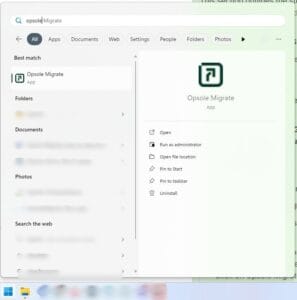
- Click on Opsole Migrate from the search results
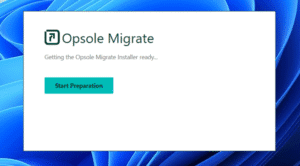
- The application will launch with a Preparation Window
4: Start the Preparation Process
Once the Opsole Migrate application opens:
- Click the Start Prepare button in the Preparation Window
- The application will initiate the preparation phase for device migration
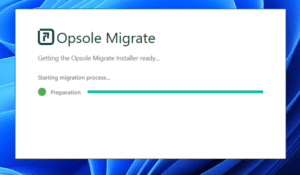
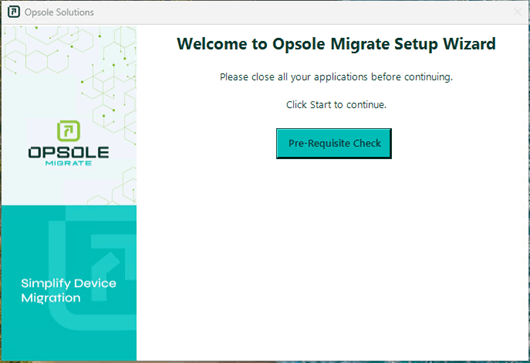
- The Opsole Migration Application Window will open
- You will be greeted with a Welcome Wizard that guides you through the Pre-Requisite Check process
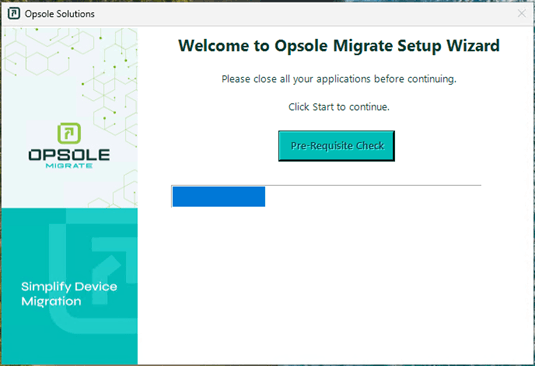
Step 2: Pre-Requisite Check
- Click “Pre-Requisite Check” to begin validation.
- The app checks system readiness, licensing, and device state.
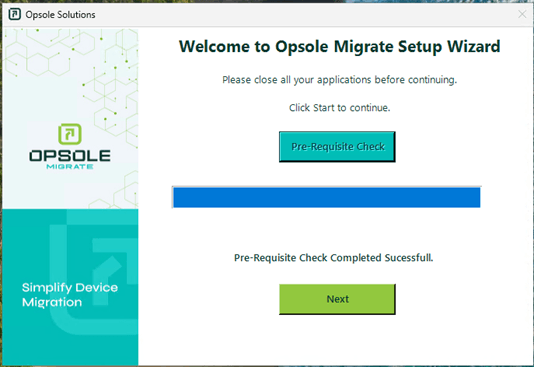
Step 3: Pre-Req Check Success
- If all requirements are met, a “Check Passed” message appears.
- Click Next to proceed.
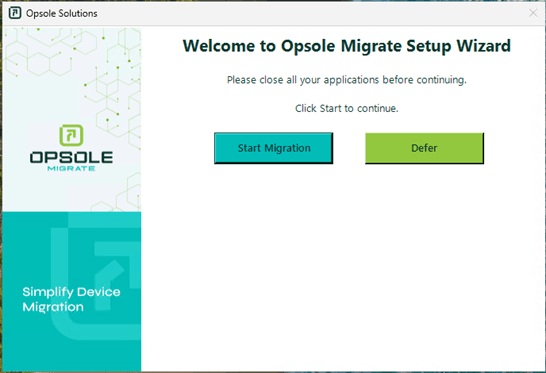
Step 4: Start Migration
- Click Start Migration to begin.
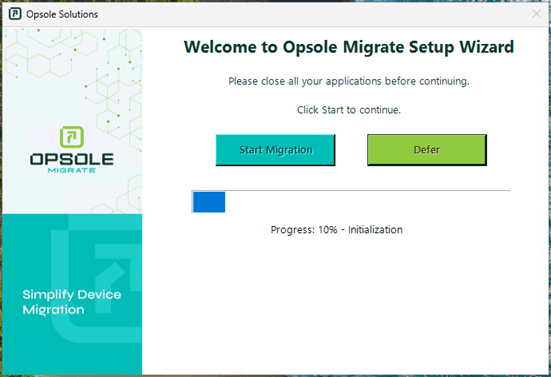
Step 5: Initial Migration Phase
- The application executes the initial migration steps.
Step 6: Initial Migration Phase Complete
- Once complete, click Close to finish this phase.
- The system automatically reboots to apply changes.
Note : This is expected and part of the migration workflow.
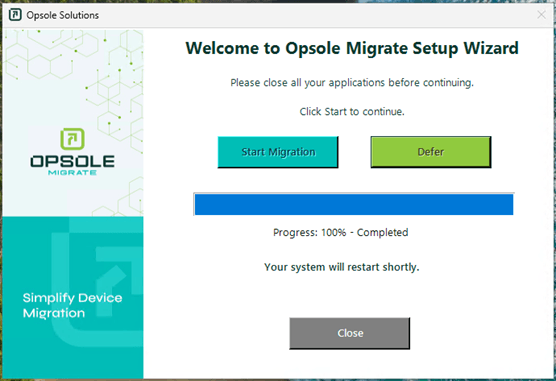
Step 7: Migration Banner
- Upon reboot, a banner will appear stating:“Migration in progress. Do not log in. Please wait.”
- After 2–3 minutes, The system will automatically reboot again to complete background migration steps..
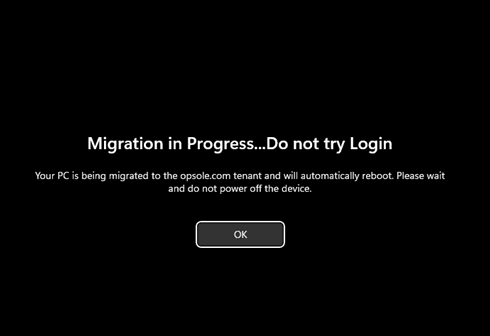
Note : At this stage, the user must not attempt to log in. Doing so may interrupt or break the migration process.
Step 8: Entra Login Prompt
- After the second reboot, users are prompted to log in using Microsoft Entra ID credentials.
- Enter the user email address and password.
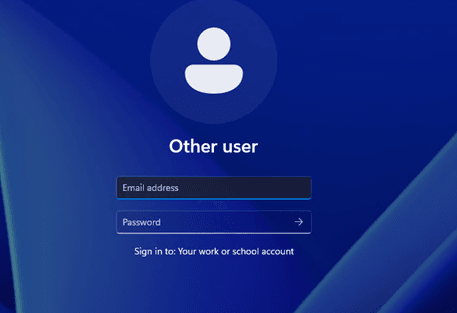
Step 9: Resume Migration
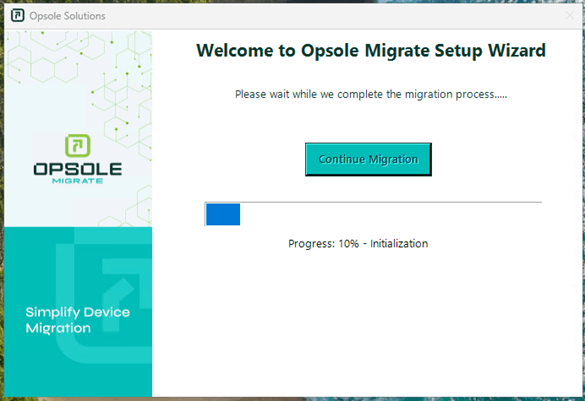
- Once logged in, the “Continue Migration” window appears.
- Click Continue Migration to proceed.
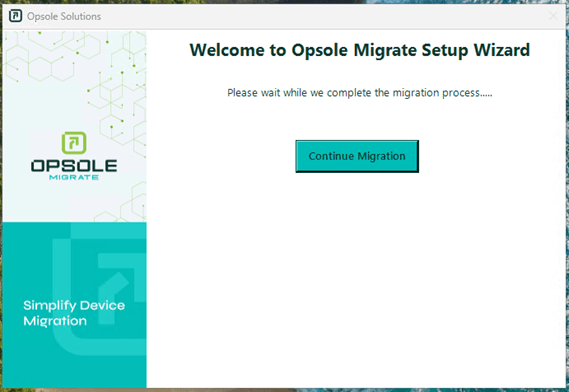
Step 10: Final Migration Phase
- The application will process the remaining steps required to finalize the migration.
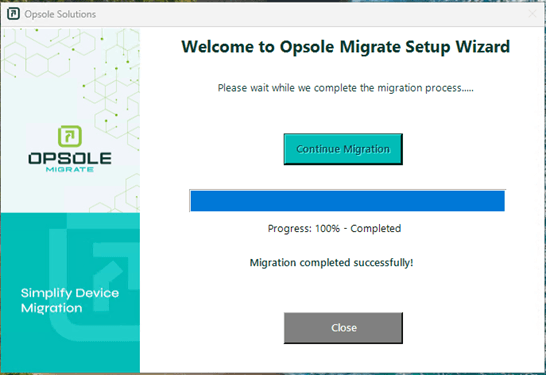
Step 11: Migration Complete
- A confirmation message appears: “Migration Completed Successfully”
- Click Close to finish.
Step 12: Post-Migration Validation
- Open the Microsoft Entra Admin Portal and verify:
- The device appears under Devices
- The status is listed as Entra Joined
- Confirm the user profile and local data are intact.