
2. Deployment Procedure
2.1 Migration Source Files
To obtain the latest Opsole Migrate Installation Files from your Opsole Customer Portal. Navigate to the License Management section to download the migration setup file.
This files include the application installer and supporting components necessary for executing migrations.
2.2 Phase 1: Pre-Migration Activities
Step 1: Validate Prerequisites
Before proceeding, confirm that all requirements have been met:
✅ Microsoft licensing and tenant access rights
✅ Supported device states and technical specifications
✅ Network connectivity and Graph API permissions
✅ Required tools (e.g., Windows Configuration Designer, Win32 Content Prep Tool)
Refer to Section 1: Prerequisites for complete details.
2.2.1 Application Registration in Microsoft Entra ID
You will register a new application in each source and destination tenant to enable API access.
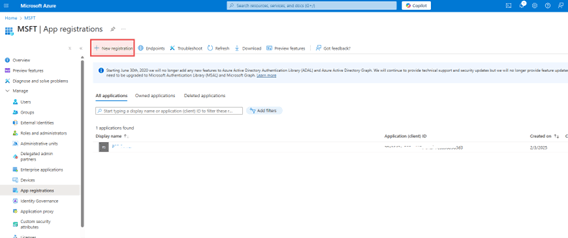
- Go to entra.microsoft.com and sign in with Global Administrator credentials
Step 1: Register the Application
1. Navigate to:
Home > Applications > App registrations
2. Click + New registration
3. Provide a name for the application (e.g., OpsoleMigrateApp). Leave other settings as default.
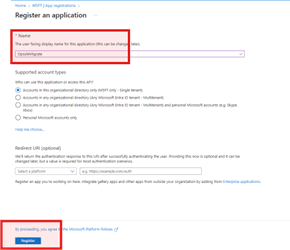
4. Click Register
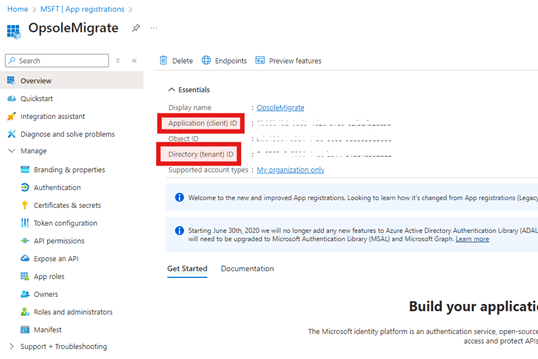
Save Identifiers
- From the application’s Overview page, copy and save the following:
- Application (Client) ID
- Directory (Tenant) ID
Add API Permissions
- Go to API permissions > click + Add a permission
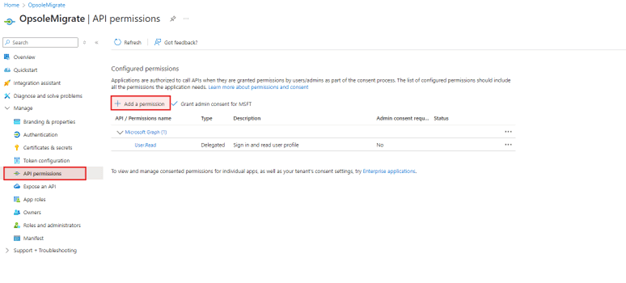
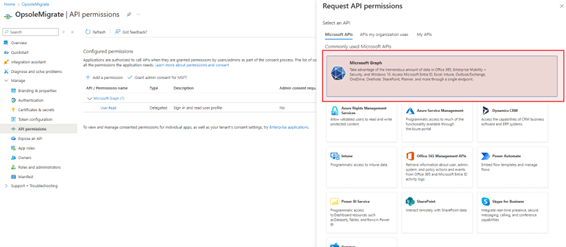
- On the Request API permissions page, select Microsoft Graph
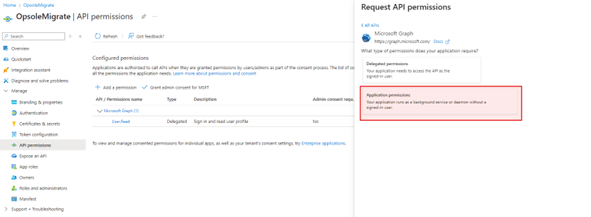
- Select Application permissions
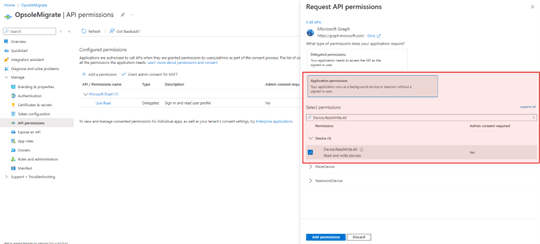
- Use the search bar to add the following permissions:
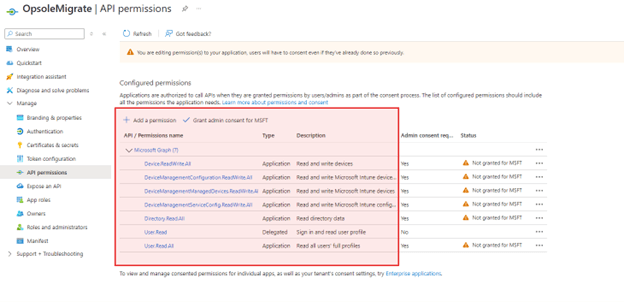
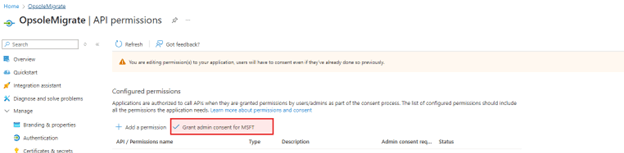
5. After adding the permissions, click Grant admin consent for [TENANT NAME]. Click Yes at the Grant admin consent confirmation popup.
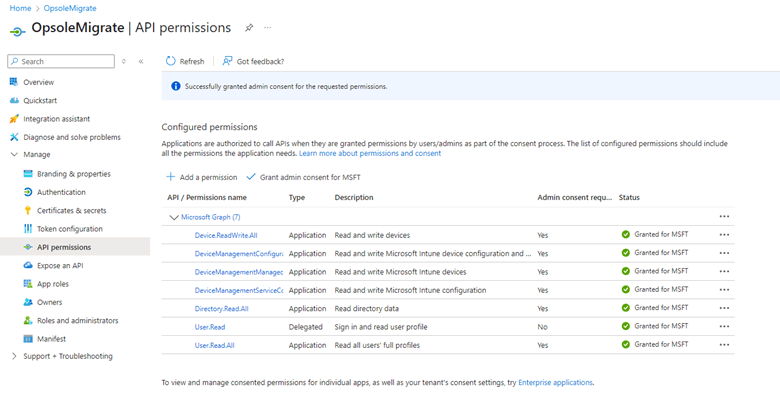
6. All permissions should now display a status of Granted for [TENANT NAME]
Generate a Client Secret
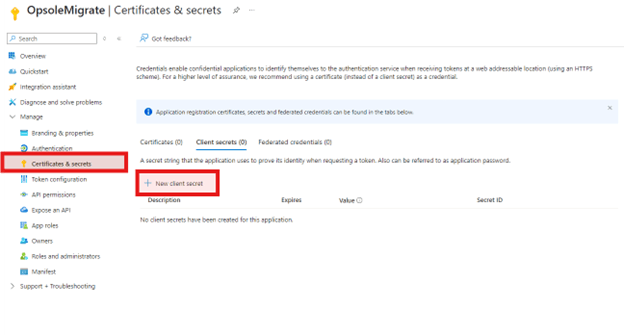
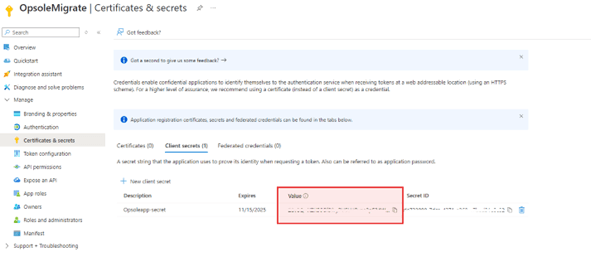
1. Navigate to Certificates & secrets > Client secrets
2. Click + New client secret
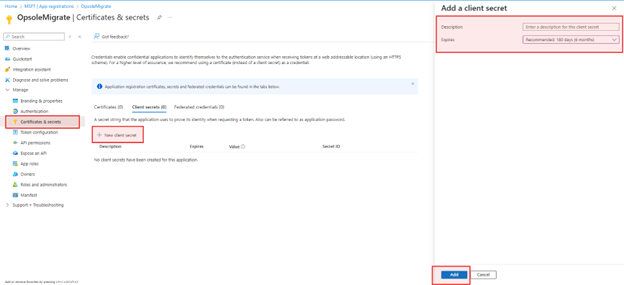
3. Fill in the following:
- Description: (e.g., OpsoleSecretKey)
Expires: Select a duration (e.g., 180 days recommended)
4. Click Add
Save the Secret Value
- Copy the Value of the new secret immediately and save it securely
⚠️ This is the only time the secret value will be visible. Do not navigate away without saving it.
2.2.2 Provisioning Package Preparation
To support device registration and migration, a provisioning package must be created using the Windows Configuration Designer (WCD) tool.
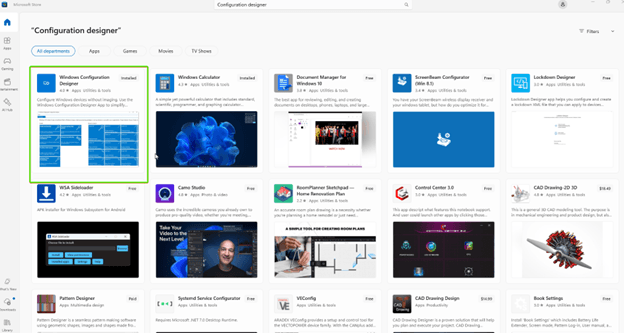
Step 1: Download Windows Configuration Designer (WCD)
Download and install the Windows Configuration Designer from the Microsoft Store:
👉 Download from Microsoft Store
Note:
- The Microsoft Store must be accessible on the PC where the provisioning package will be created.
- This is a one-time setup activity typically performed on the IT admin’s workstation.
Step 2: Launch Windows Configuration Designer
- Open the Start menu
- Search for and launch Windows Configuration Designer
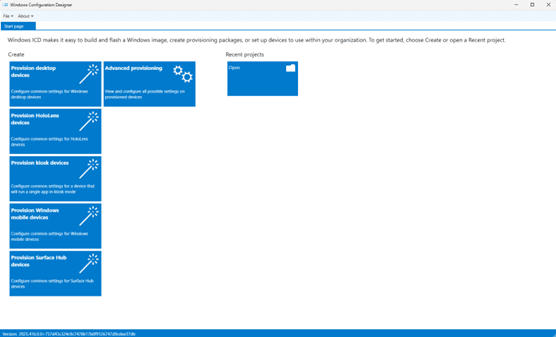
Create a New Project
- In the WCD home screen, select “Provision desktop devices” under the Create menu.
- In the New project popup:
- Enter a name for your provisioning package and Path
- Click Finish

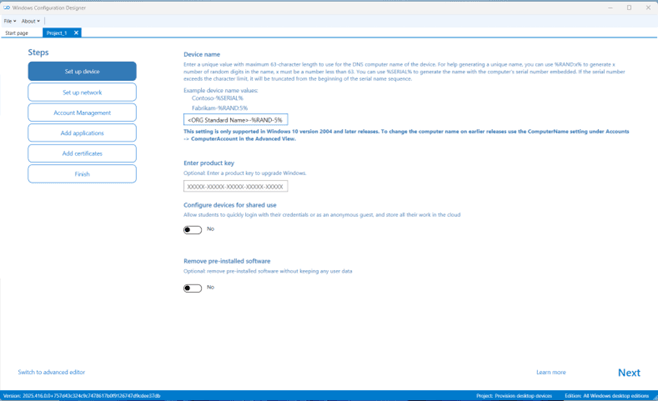
Configure Device Settings
- Under Set up device, define a naming template for your PCs (e.g., IT-{SERIAL})
- Click Next
3. In Set up network, toggle “Connect device to a Wi-Fi network” to Off
4. Click Next

Enroll with Bulk Azure AD Token
- Under Account Management, do the following:
- Choose Enroll in Azure AD under Manage organization/school accounts
Toggle “Refresh AAD credentials” to Yes
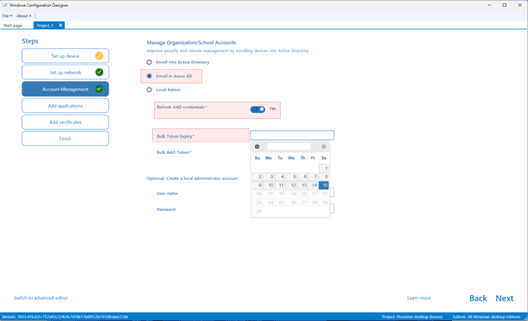
2. You will be prompted to sign in with Global Admin credentials
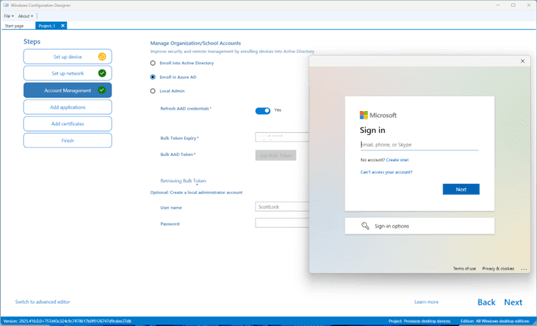
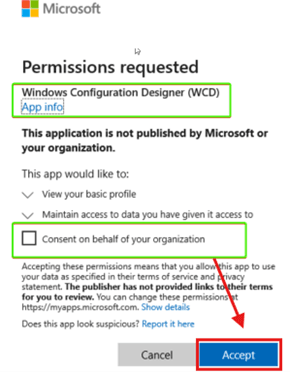
3.If this is your first time using WCD:
- You will see a permissions consent screen
- Click “Consent on behalf of your organization”
Then click Accept
4. You should see a confirmation message:
✅ Bulk token was fetched successfully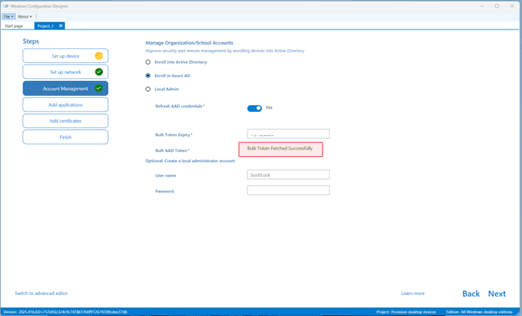
Complete the Package
- Skip the Add applications and Add certificates screens by clicking Next
- On the Summary screen, verify all configuration details
- Click Create
- After creation, a file path to the .ppkg file will be displayed
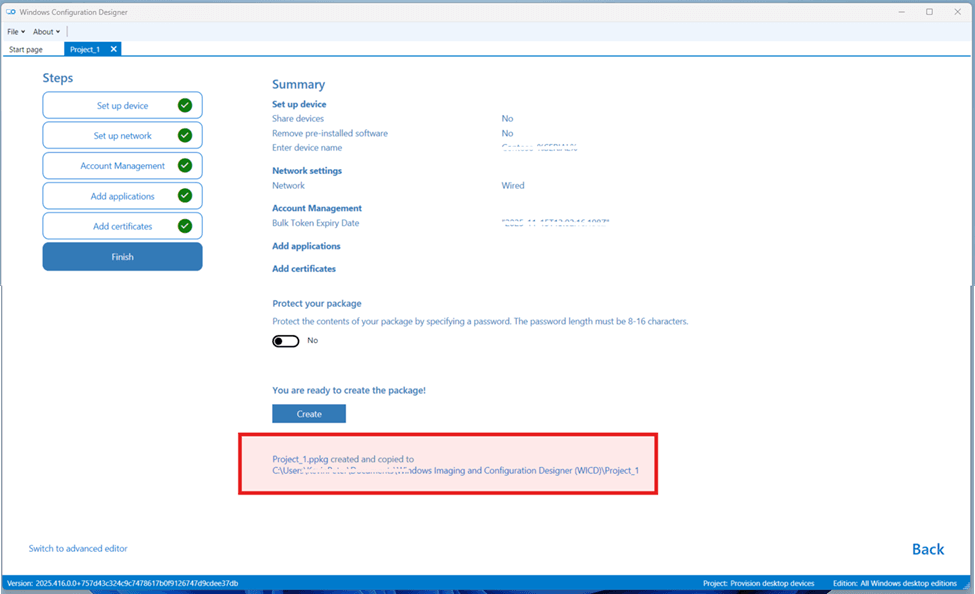
Note: If you wish to retain the existing PC name post-migration, skip the above Create step and refer to Optional Steps below.
(Optional) Remove Computer Name from Package
If you need to retain the existing computer name after migration:
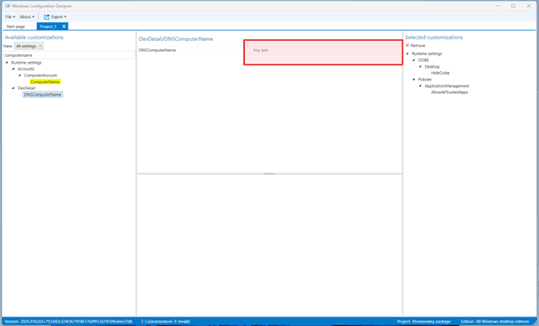
- In WCD, click “Switch to advanced editor”
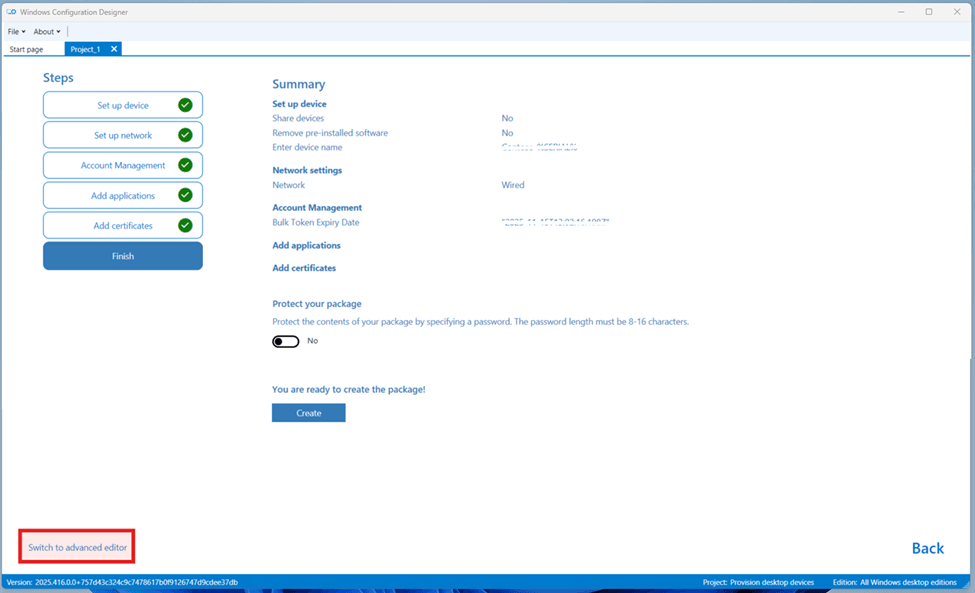
- Search for Computer name object
- Select DNSComputerName
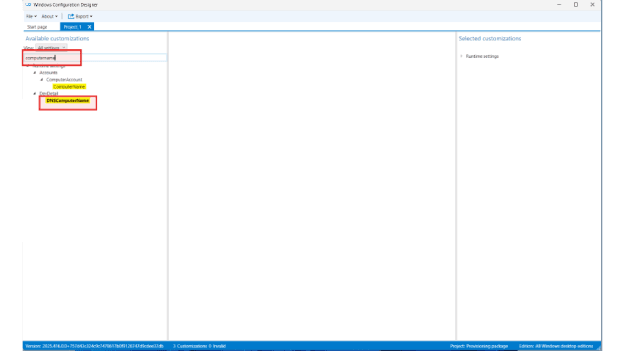
- On the right-hand side panel, (under Runtime settings > Identification), Select DNSComputerName
- click Remove
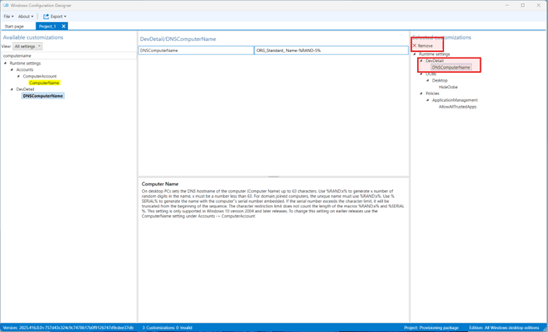
- The computer name setting will now be excluded from the package
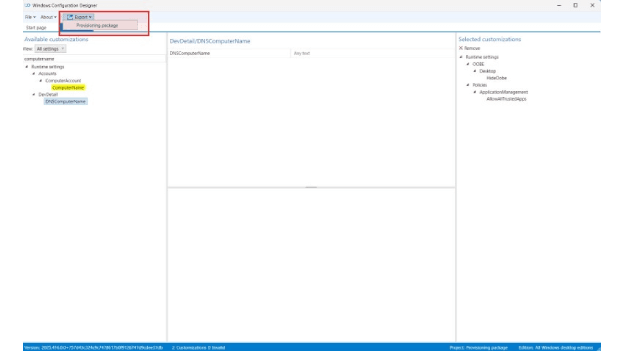
Export the Final Provisioning Package
- Click Export > Provisioning package
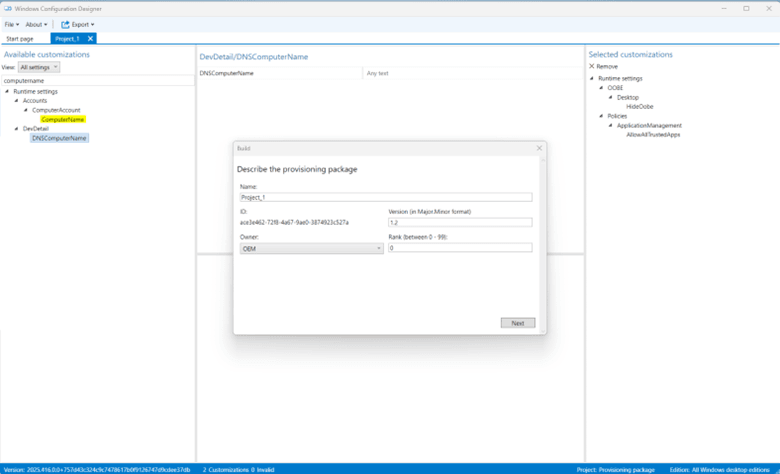
- Enter a file name, then click Next
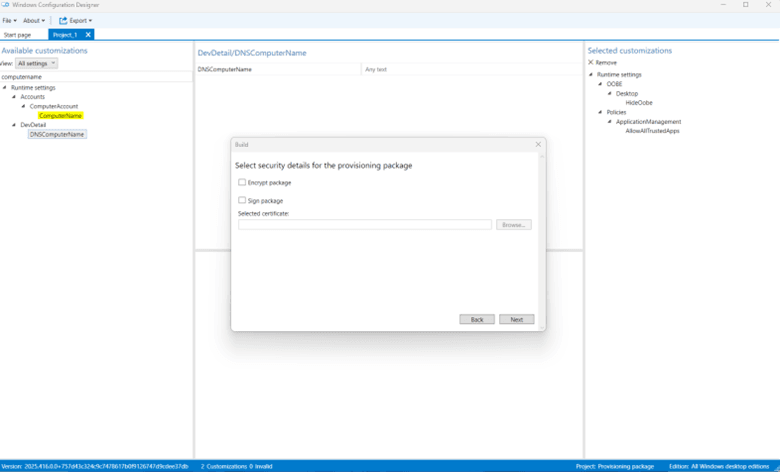
- Leave security settings as default, click Next
- Choose the destination folder, then click Next
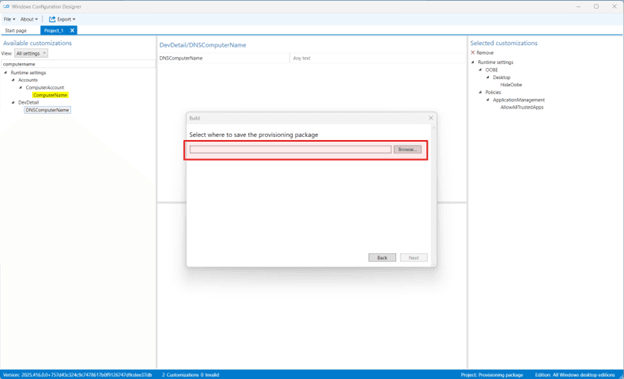
- Click Build
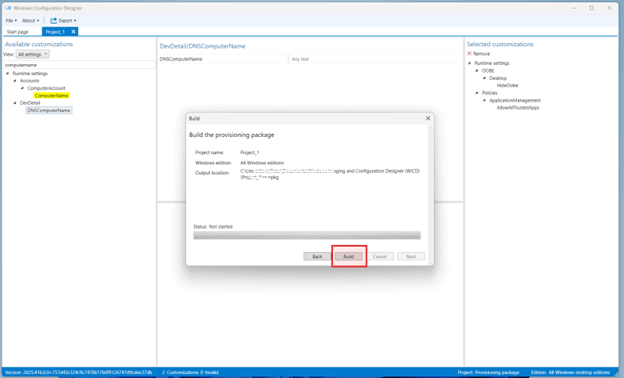
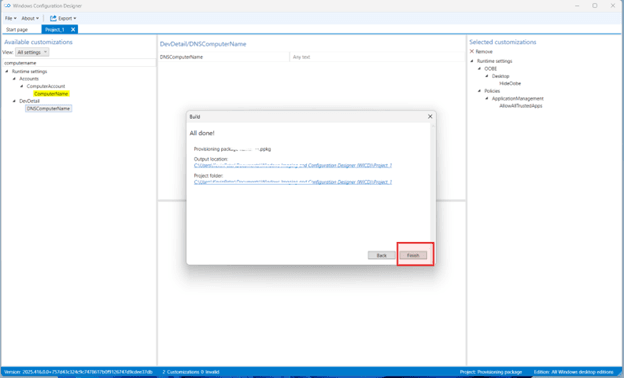
You will see a confirmation message:
✅ Provisioning package has been successfully saved and the location
2.2.3 Active Directory Device Disjoin Account Preparation
To enable devices to be disjoined from a Local Active Directory (AD) domain during migration, a dedicated standard user account with delegated permissions is required. This account will be used by the Opsole Migrate application to perform disjoin operations on the targeted devices.
Step 1: Create a Delegated AD Account
- On your domain controller, open the Active Directory Users and Computers console (dsa.msc)
- Create a new user account in your preferred Organizational Unit (OU)
- Set a strong password
- Ensure the account is not restricted by any GPO or security policies that would prevent remote logins
- Confirm the account can log in remotely to domain-joined PCs
Step 2: Delegate Control to the Computers OU
- In Active Directory Users and Computers, navigate to the OU that contains the computers targeted for migration
- Right-click the OU and select “Delegate Control…”
- In the Delegation of Control Wizard:
- Click Next
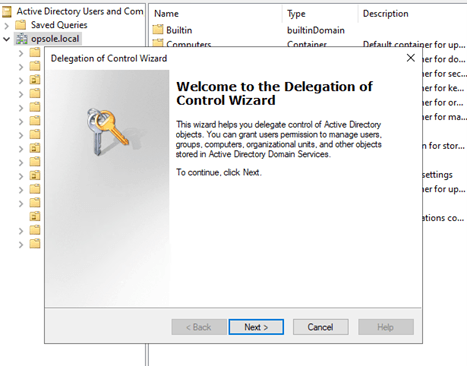
- Click Next
Select the user account you created in Step 1 and Click Next
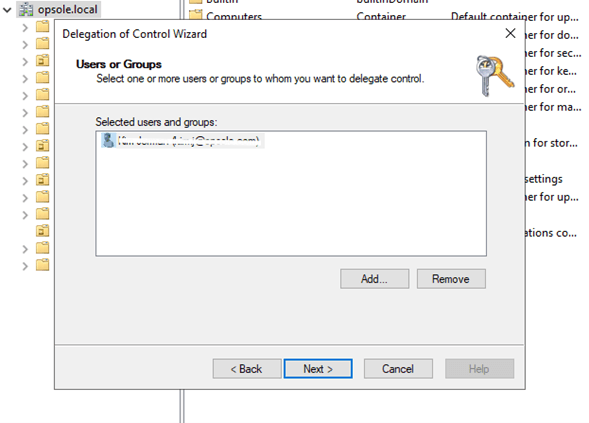
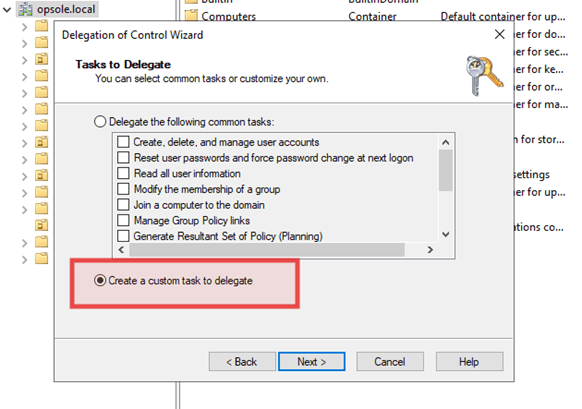
4. On the Tasks to Delegate screen:
- Choose “Create a custom task to delegate”
- Click Next
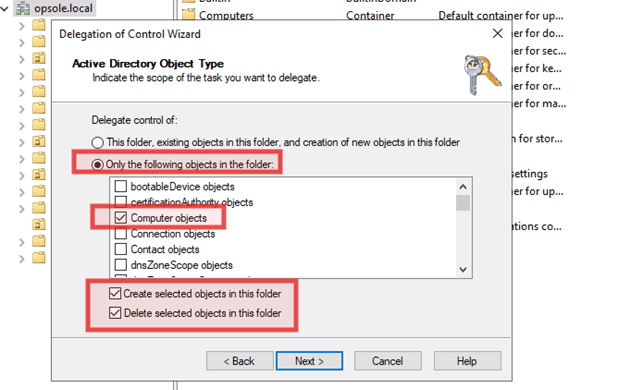
5. In the Active Directory Object Type window:
- Select “Only the following objects in the folder”
- Check:
✅ Computer objects
✅ Create selected objects in this folder
✅ Delete selected objects in this folder - Click Next
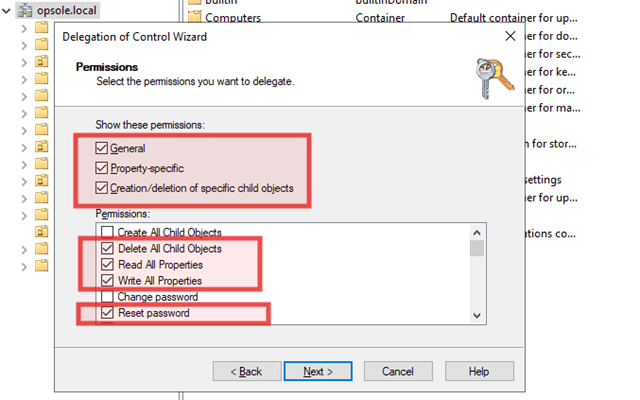
6. In the Permissions window:
- Select:
✅ General
✅ Property-specific
✅Creation/deletion of specific child objects - Under Permissions, check the following:
✅ Delete All Child Objects
✅ Read All Properties
✅ Write All Properties
✅ Reset Password
- Select:
7. Click Next, review your settings
8. click Finish to complete the delegation.
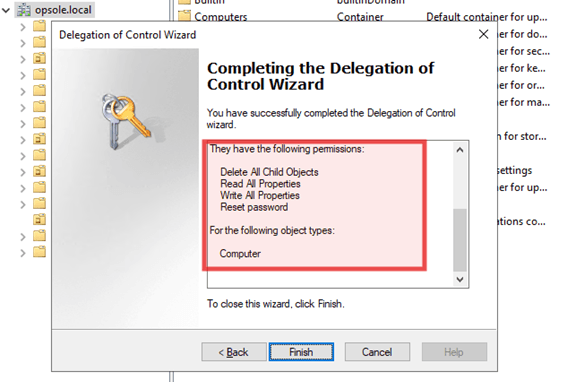
✅ The user account now has the required delegated rights to disjoin computer objects from Active Directory.
2.3 Opsole Migrate Portal Setup
After completing all prerequisite configurations, you’re ready to set up the Opsole Migrate Portal. This step involves registering your tenant and applying the configuration values gathered during the previous setup phases.
Step 1: Access the Opsole Migrate Portal
- Navigate to your unique Opsole Migrate portal URL provided to you during your Opsole Migrate license activation.
- Log in using the credentials provided
Step 2: Configure Migration Settings
- In the Opsole Migrate portal, go to:
Admin Configuration > Migration - Click Set Migration Configuration
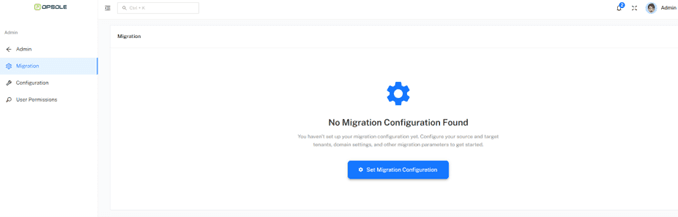
3. Select your intended Migration Scenario
(e.g., “AD Joined Device to Entra ID or Hybrid Joined Device to Entra ID”)
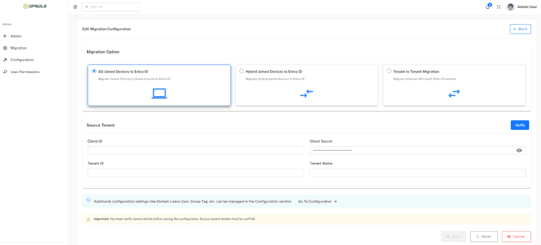
4. In the Source Tenant section, enter the following values (retrieved during application registration):
- Client ID
- Client Secret
- Tenant ID
- Tenant Name
5. Click Verify, Opsole Migrate will automatically validate the credentials and configuration
6. Save Configuration
Step 3: Additional Configuration
After successfully saving your Entra ID configuration, proceed to complete the Additional Configuration settings and provisioning package upload:
- From the Opsole Migrate Portal, navigate to:
Admin Configuration > Additional Configuration
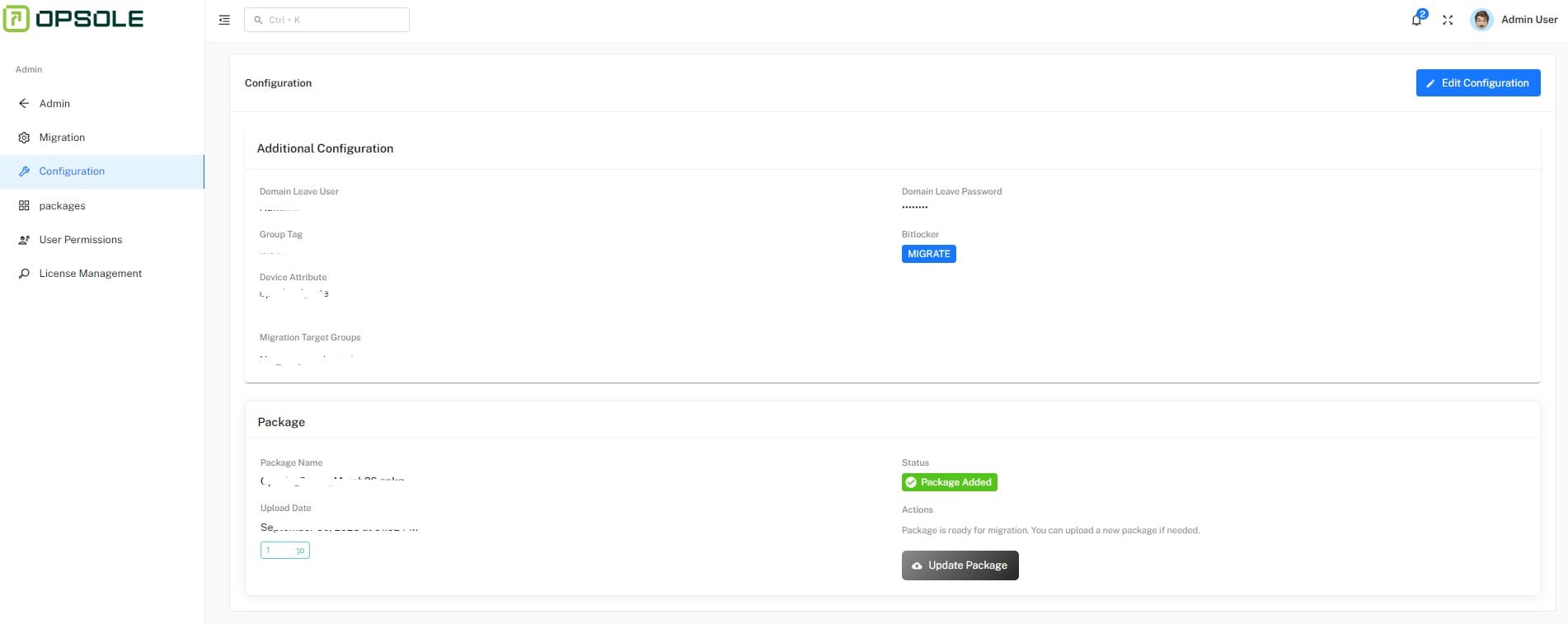
- Fill in the following fields as needed for your migration scenario:
- Domain Leave User: Enter Domain\Username format
- Group Tag (Autopilot Devices): Specify the group, if applicable, to manage devices provisioned through Autopilot
- BitLocker Migrate Option: MIGRATE or DECRYPT based on whether you want to retain BitLocker encryption during migration
- Device Attributes: Add a device attributes name which will be added to the migrated Device
- Target Group: Define the destination group to which devices should be assigned after migration
- Click Save to apply the settings.
Step 4: Provisioning package
To upload the provisioning package for the migration process, follow these steps:
- Navigate to Admin Configuration > Additional Configuration
- Locate the Package section on this page
- Click Upload Package
- Upload the Provisioning package
✅ Your configuration is now complete. You are ready to begin the Opsdole Migrate application and Start Your Migration