
How Opsole Migrate Works
This section covers the **hands-on setup and execution** steps: creating the provisioning package with WCD, preparing the AD disjoin account, and configuring the Opsole Migrate portal (including domain, BitLocker, attributes, and provisioning package upload).
On this page
Understand How Opsole Migrate Works
Introduction
Opsole Migrate automates Active Directory domain-joined and Microsoft Entra hybrid joined device migration to Microsoft Entra join. Tenant-to-tenant migration supports domain-joined, Microsoft Entra hybrid joined, and Microsoft Entra joined source devices. It preserves the existing Windows profile folder name and path while transitioning the device and user identity.
This section provides a clear, high-level understanding of how the Opsole Migrate engine works behind the scenes, so administrators can anticipate what to expect during each phase of the migration and understand key requirements for a successful transition.
1. Purpose of Migration Workflow
Modern endpoint environments are moving away from on-premises domain dependency toward cloud-native identity using Microsoft Entra ID. Opsole Migrate enables this shift by:
- Removing domain membership cleanly
- Performing an automated Microsoft Entra join
- Preserving user profiles and data
- Re-registering the device into Intune / Autopilot
- Ensuring a seamless login experience with the user’s Entra ID credentials
Understanding how Opsole Migrate helps IT teams to:
- Troubleshoot issues quickly
- Identify environmental blockers (EDR, GPO, network)
- Coordinate migration tasks with users
- Prepare for reboots, login restrictions, and background operations
2. Migration Lifecycle at a Glance
Opsole Migrate automates the complex process through three intelligent automated phases that work together seamlessly. Each phase has a specific purpose, execution context, and minimal user interaction, orchestrated by controlled reboots and Windows Task Scheduler.
2.1 Opsole Migrate High-Level Workflow
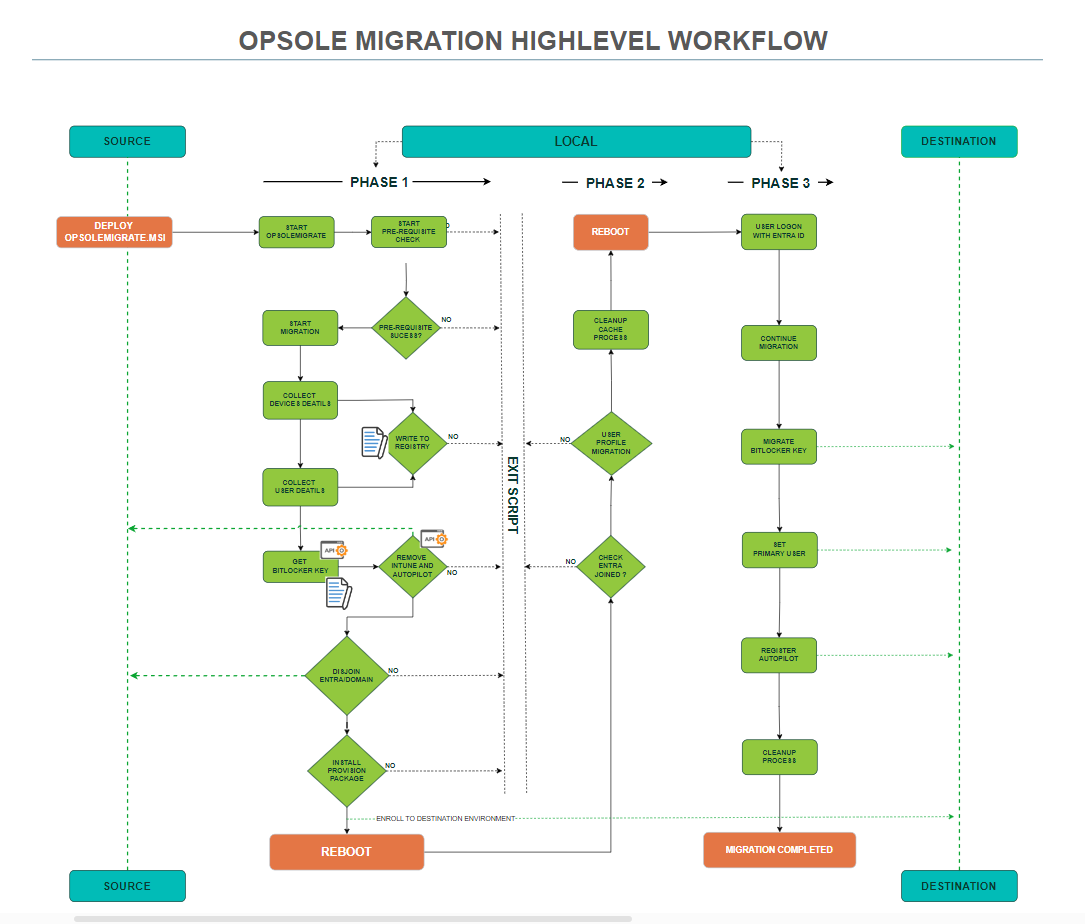
Phase 1 — Initiation (User-triggered)
This phase begins when the user launches Opsole Migrate and runs the pre-check. After validating readiness, the engine:
- Collects device and user details
- Writes required metadata to registry
- Retrieves BitLocker key information
- Removes stale Intune and Autopilot records
- Unjoins the device from the domain (gracefully if possible)
- Joins the device to Microsoft Entra using a provisioning package
- Creates the Phase 2 task scheduler
- Disables user login
- Initiates a reboot
End result: Device restarts and enters Phase 2 automatically.
Execution Context
- Application should be launched from the migration user account
- Migration process runs under SYSTEM account
- User-initiated mode starts when the user launches the standard application executable and starts migration in its interface.
- IT-scheduled / AutoLaunch mode starts when customer IT uses its own scheduling, software deployment, or endpoint-management capability to invoke the separate AutoLaunch executable in the application installation folder. The Opsole Migrate portal does not schedule it.
- AutoLaunch removes the initial application clicks but does not automate the complete migration; the user still signs in with the appropriate Microsoft Entra ID account and selects Continue Migration after the required restarts.
- Performs migration operations, Graph API calls, and provisioning package execution
- Creates Phase 2 Task Scheduler to run at startup at next reboot
Environmental Dependencies
- Network connectivity for Graph API and Opsole API endpoints
- Provisioning package exists and is valid
- EDR/AV does not block scheduled task creation or system changes
Failure Conditions & What to Check
| Issue | Likely Cause | What to Check |
|---|---|---|
| Authentication failed because NTLM authentication has been disabled | Domain leave user format issue or password wrong | Verify Domain leave user authentication and permission |
| Microsoft Entra join fails | PPKG blocked / EDR interference / corrupted PPKG | Check logs & EDR allowlist Test PPKG installation |
| Phase 2 does not start | Scheduled task blocked | Check if OpsoleMigrate-Phase2 exists |
Phase 2 — System Migration (Runs before user login)
This phase is triggered automatically by a scheduled task when the machine restarts.
Before any user signs in, Opsole Migrate:
- Confirms the device is successfully Microsoft Entra joined
- Checks if the user profile is currently loaded
- Migrates the user profile to the new Entra identity
- Creates the Phase 3 task scheduler
- Re-enables user login
- Initiates another reboot
End result: Device restarts and the user can sign in using their Entra ID to complete the final phase.
Execution Context
- Trigger: Task Scheduler job created in Phase 1
- Application runs under SYSTEM
- Performs migration operations, Graph API calls, profile migration
- Creates Phase 3 Task Scheduler to run at next reboot
Environmental Dependencies
- Network connectivity for Graph & Opsole API
- Task Scheduler not blocked by EDR or GPO
- No background services auto-loading the user profile
- EDR must not delete tasks created in Phase 1
Failure Conditions & What to Check
| Issue | Likely Cause | What to Check |
|---|---|---|
| Phase 2 never runs | EDR blocked scheduled task | Check OpsoleMigrate-Phase2 exists |
| Profile did not migrate | Profile loaded during Phase 2 | Check services/agents loading user data |
| Phase 2 exits and reboots | Microsoft Entra join incomplete | Validate join state |
Phase 3 — Post-Login Finalization (User logs in with Entra ID)
After the reboot from Phase 2, the user signs in with their Entra ID.
Opsole Migrate then:
- Continues migration through the Phase 3 task
- Migrates BitLocker recovery keys (if applicable)
- Registers the device in Autopilot
- Performs cleanup of temporary tasks and files
- Marks migration as complete
End result: Device fully cloud-joined, profile preserved, and management restored.
Execution Context
- Trigger: Task Scheduler created in Phase 2
- Application runs under SYSTEM
- Performs final operations and cleanup
Environmental Dependencies
- Network connectivity for Graph & Opsole API
- Task Scheduler not blocked by EDR/GPO
- EDR must not delete Phase 2–created tasks
Failure Conditions & What to Check
| Issue | Likely Cause | What to Check |
|---|---|---|
| Phase 3 window never appears | EDR blocked task | Check Task Scheduler |
| User login fails | Incorrect Entra credentials | Verify Microsoft Entra join & account |
| BitLocker key not visible | Network or rights issue | Check encryption status & Entra portal |
3. Environment Dependencies and Why They Matter
Network/Endpoint Connectivity
Tool requires connectivity to:
- Opsole API for license and configuration retrieval
- Domain controller: not required. If one is reachable, the AD disjoin account is used to leave the domain; remote devices without a domain controller connection are supported.
- Microsoft Graph / Entra ID / Intune endpoints
Lack of connectivity or blocked ports may cause join or registration failure.
Device State & Rights
The tool assumes it runs under elevated rights (SYSTEM/local admin) and can unjoin, join and manage device state. If device is locked down (GPO prevents unjoin) or user has insufficient rights, migration may fail.
Application must be allowed/whitelisted in EDR/AV:
Phase 2 and Phase 3 depend on Windows Task Scheduler jobs being created and executed at the correct time. If an EDR or security policy blocks the application or creation or execution of the tasks, the migration will stop after Phase 1 (or silently fail). It is critical that the clients allow task creation and invocation by the migration engine.
User Profile Must Not Load Prematurely
If any background service, auto-login agent, or folder-redirection script causes the user profile to load before Phase 2 executes, the tool will skip the profile migration step (because it detects a loaded profile). That often leads to the user complaining “my profile didn’t migrate” whereas the root cause is an environment agent loading the profile early.
4. Responsibilities: Opsole Migrate vs Customer
| Area / Task | Opsole Migrate Responsibility | Customer Responsibility |
|---|---|---|
| Product Function | Provide migration application | Use tool correctly from migration user account |
| API Connectivity | Provide API endpoints | Ensure outbound network access |
| EDR Compatibility | Provide binaries & instructions | Allow Opsole Migrate and required actions |
| Scheduled Tasks | Creates and runs internal migration tasks | Ensure EDR/GPO allow task creation and execution; schedule AutoLaunch externally if used |
| Microsoft Entra join | Automate provisioning package execution | Upload correct PPKG |
| Domain Unjoin | Handles unjoin logic | Ensure credentials and OU delegation are correct |
| Profile Migration | Handles SID mapping and ACL updates | Ensure profile not loaded by services |
| Microsoft Graph | Perform Graph calls | Ensure correct Entra app permissions |
| Optional backups | Back up BitLocker recovery keys and Windows LAPS passwords when enabled | Configure optional portal settings and approved recovery handling |
| Device Readiness | N/A | Ensure device is stable and healthy |
| Identity Validation | Look up user in Entra | Ensure correct Entra user exists |
| Local Machine State | N/A | Prevent GPO/security restrictions |
| User Experience Continuity | Control the two-reboot flow | Communicate when sign-in is temporarily restricted and when the user must sign in and select Continue Migration |
| Monitoring & Reporting | Write events to Event Viewer > Applications and Services Logs > OpsoleMigrate and device migration logs in the portal | Admin monitors both supported log locations |
Conclusion
Opsole Migrate is designed to make the transition from Hybrid AD or on-prem Active Directory to Microsoft Entra ID smooth, predictable, and fully automated.
By understanding how each phase works, what actions occur in the background, and why certain environmental dependencies matter, IT administrators can plan migrations with confidence and avoid unexpected interruptions.
This document outlined the complete lifecycle of the Opsole Migrate engine—how it unjoins a device from the domain, performs Microsoft Entra join, migrates the user profile, and restores management through Intune/Autopilot with minimal user impact.
With this knowledge, administrators can:
- Clearly anticipate each phase of the migration
- Quickly identify issues when they arise
- Ensure their environment supports the tool
- Communicate effectively with end users during the process
Opsole Migrate is a powerful automation engine—but its success depends on a prepared environment. Understanding how it works is the first step toward a seamless, automated in-place device modernization journey.