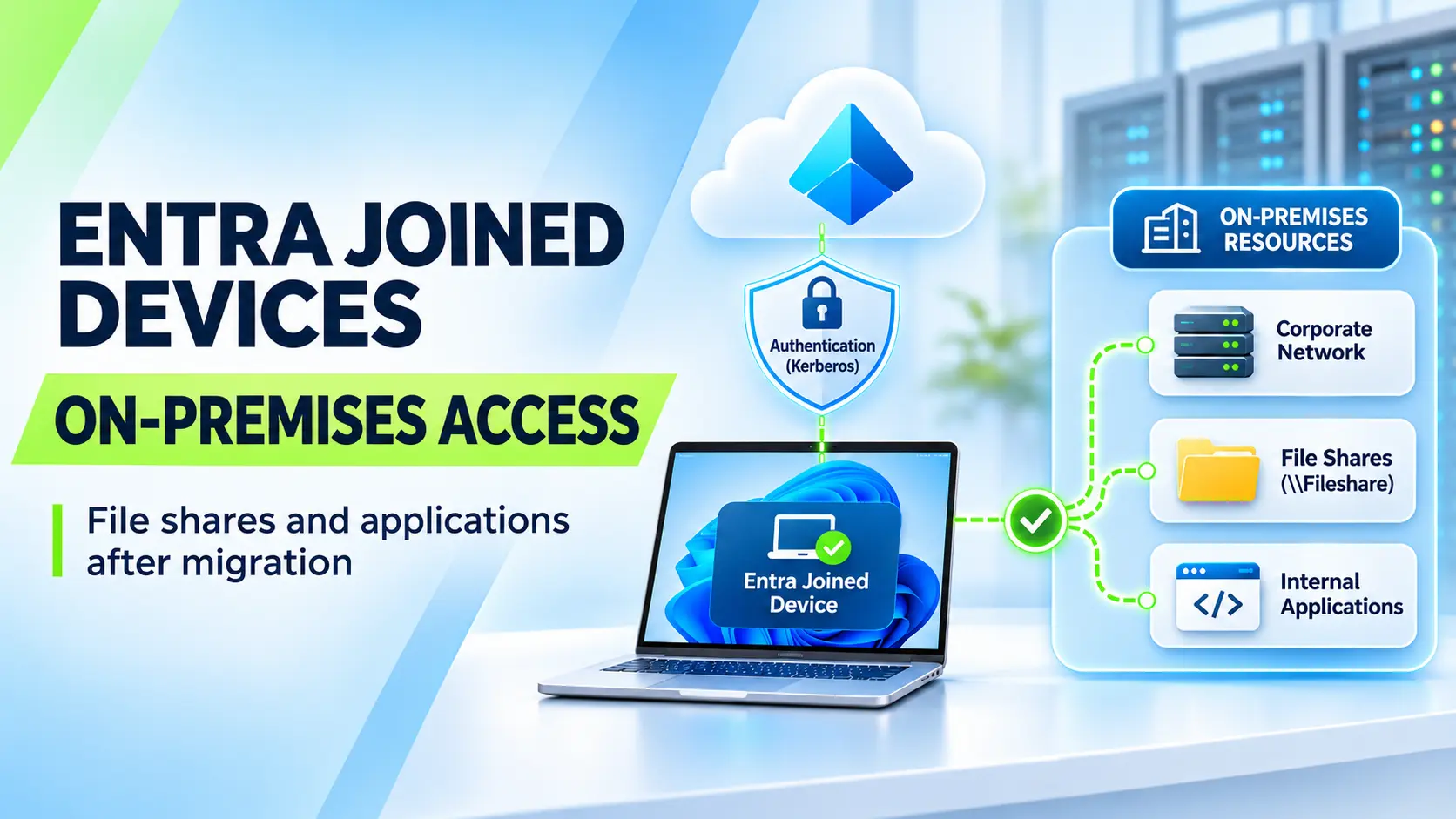
How authentication and connectivity work after Microsoft Entra join.
Yes. Microsoft Entra joined Windows devices can access supported on-premises file shares and applications, including resources that use Active Directory authentication. The device does not have to remain domain joined for every resource to work. Access depends on the user’s identity, network connectivity, permissions and the application’s authentication requirements.
Organisations can modernise endpoint identity and management with Entra joined devices while some applications and file servers continue operating on-premises.
Consider a finance employee who signs in to a laptop, opens a departmental share and launches an internal application. The migration needs to preserve that working experience. Testing Microsoft 365 sign-in alone will not establish whether the employee can complete their daily work.
Entra joined devices can leave AD while users retain an AD identity
An Entra joined laptop uses Microsoft Entra ID for its organisational device identity. The employee can still have an on-premises AD account synchronized to Entra ID. In that arrangement, the device is Entra joined while the user’s identity continues to span both directories.
Microsoft documents on-premises single sign-on using synchronized user and domain information. A user created only in Entra ID does not automatically receive an AD account or the permissions attached to one. That distinction matters when assessing an existing environment or introducing new employees.
Device migration and server migration can follow separate schedules. Keep the domain controllers that remaining services depend on until those dependencies are removed or replaced.
How access to a Windows file share works
In Microsoft’s documented password-based flow, the Entra joined device uses synchronized AD information to locate a domain controller. The user’s credentials can then obtain a Kerberos ticket-granting ticket. Windows uses Kerberos service tickets for access to compatible resources. Microsoft also supports relevant NTLM scenarios, subject to the environment’s policies.
Connectivity must include the supporting services
For a conventional SMB connection, the laptop needs network access to the file server over TCP port 445, as well as the authentication services it uses.
Internal DNS, domain controller discovery, Kerberos connectivity and correct time are also part of the assessment. Microsoft’s troubleshooting guidance covers these dependencies.
Test the path employees actually open, such as \files01.contoso.com\Finance. IP addresses and old aliases can behave differently.
Windows does not attempt Kerberos to an IP-address hostname by default. Use valid DNS names and check service principal names, or SPNs, which identify services for Kerberos. An alias resolving successfully in DNS is only one part of making authentication work.
Existing permissions still matter
An AD-backed file server continues to evaluate the authenticated identity and its access rights. AD security groups remain a way to grant permissions to shared resources.
Where the user keeps the same AD identity and group memberships, changing the laptop’s join state alone does not require replacing ordinary AD user and group permissions with Entra identities. Check both share and NTFS permissions, plus any additional access controls.
If a migration also changes the user’s AD account, domain or group memberships, assess those permission changes separately.
Windows Hello for Business needs the right trust configuration
An employee might pass a file-share test after signing in with a password, then encounter a prompt when using Windows Hello for Business. PIN or biometric sign-in needs an appropriate trust configuration for access to AD resources.
Cloud Kerberos trust is a supported approach for both Entra joined and hybrid joined devices. It requires Microsoft Entra Kerberos configuration and the relevant Windows Hello for Business policies. Enrolling a PIN alone does not complete that setup.
In the documented flow, Entra ID provides a partial ticket for the AD domain. The client exchanges it with an on-premises domain controller for a full ticket. The cloud component therefore does not remove the AD dependency behind this access model. Microsoft also documents on-premises SSO for supported FIDO2 security-key sign-in.
Pilot with the authentication methods employees will actually use. For cloud Kerberos trust, also review Microsoft’s restrictions on privileged accounts; a Domain Admin account is not a representative test user.
Which applications need closer assessment on Entra joined devices?
Assess applications by their authentication method and backend dependencies:
| Resource or application | Expected position after Entra join | What to validate |
|---|---|---|
| AD-backed SMB file share | Supported user access is possible | AD identity, service connectivity and permissions |
| Web app with Windows Integrated Authentication | SSO is possible with suitable configuration | Browser settings, service SPNs and any delegation |
| Desktop app using Windows Integrated Authentication | Assess the client and its backend dependencies | User authentication, server names and any additional services |
| App with LDAP queries or an explicit AD sign-in | Requires application-specific assessment | Bind identity, directory connectivity and vendor requirements |
| App requiring the laptop’s AD computer account | Entra join does not provide that AD machine authentication | Redesign the dependency or retain AD domain join |
| App using Entra SAML or OpenID Connect | Uses its configured Entra sign-in flow | App assignment, policies and connectivity |
Microsoft explicitly distinguishes supported user access from applications that require AD machine authentication, which Entra joined devices do not provide. Its planning guide also covers browser and legacy application considerations.
For LDAP-dependent software, ask how it connects and authenticates. An application querying AD with an explicit account differs from one assuming that every client is domain joined. Entra join does not automatically translate those directory operations into modern authentication.
Remote employees still need a route to private resources
Entra join changes device identity. Your remote access design determines how a laptop reaches internal services.
A VPN can continue to provide that connectivity, provided it supplies the necessary routes and name resolution. Test the VPN’s own authentication requirements too, especially if they rely on device certificates or an AD computer account.
Two Microsoft services offer other approaches for suitable workloads.
Microsoft Entra Application Proxy publishes supported internal web applications for remote access. With Entra preauthentication, it can apply Conditional Access and MFA before requests reach the application. Windows Integrated Authentication scenarios can use Kerberos constrained delegation. It is an application publishing service, rather than a general SMB tunnel.
Microsoft Entra Private Access provides access to configured private resources through the Global Secure Access client and private network connectors. It supports application-specific access assignments and Conditional Access. Evaluate its deployment and licensing requirements for the users and resources in scope.
For file-share SSO through Private Access, include private DNS and the required domain controller connectivity in the design. Publishing only the file server is insufficient for the documented Kerberos flow.
These services can add controls at the access path. Simply joining a laptop to Entra ID does not automatically place every direct SMB or LDAP connection behind Conditional Access. Plan how the chosen path will be enforced and how alternative routes will be controlled.
Mapped drives and printers need their own delivery plan
For Entra joined devices, a working file share and a visible drive letter are different outcomes.
Users may previously have received drive mappings, printers and application configuration through Group Policy or AD logon scripts. After the device leaves the domain, those mechanisms need an appropriate replacement.
Part of Opsole’s migration process drive mappings from Group Policy or logon scripts are not automatically recreated, and Group Policy printer deployment needs attention. Opsole’s policy and management considerations.
Define how Intune, managed scripts or another supported method will deliver each required setting. For drive mappings, verify that the configuration appears in the employee’s user session and still works after a restart.
Test a complete working session before migration at scale
When validating Entra joined devices, choose representative employees and tasks. Include an office user, a remote worker and users of applications with different authentication dependencies.
For each pilot, test:
- Opening and saving a document on each required file share, including the normal mapped or DFS path.
- Completing a business transaction in a critical application, including any backend or secondary connection.
- Repeating the work with the intended password, Windows Hello or security-key sign-in method.
- Reconnecting after a restart and after the remote access client establishes its connection.
- Confirming that permissions allow the intended work and still deny access to restricted resources.
Record the application, user type, network location, sign-in method, result and remediation owner. An employee opening one folder on the office network proves only that tested scenario.
Use diagnostics to explain failures
A few checks can help separate device state, network access and authentication:
- Run dsregcmd /status in the signed-in user’s normal session. An Entra joined device should show AzureAdJoined : YES and DomainJoined : NO. Review user SSO information in that context.
- Run Test-NetConnection files01.contoso.com -Port 445 in PowerShell, replacing the example hostname. A successful TCP test confirms reachability to that port; it does not establish authentication or permission to open a file.
- After attempting resource access, run klist in the same user context to inspect cached Kerberos tickets. Correlate the result with client, server and domain controller logs.
Where Opsole Migrate fits
Opsole Migrate provides an in-place route for supported AD-to-Entra, hybrid-to-Entra and tenant-to-tenant device migrations. It is designed to retain the existing Windows user environment while avoiding a wipe and rebuild. Its prerequisites require representative testing, including business-critical applications. Opsole Migrate prerequisites.
That can reduce the work of recreating profiles and application settings while the organisation changes device identity. The application and infrastructure teams still need to establish that authentication, connectivity and policy delivery work in the target environment.
Use the access assessment to shape migration waves. Devices whose required workflows pass can move together; devices with unresolved machine-authentication or application dependencies need a remediation plan.
Common questions about access after Entra join
Do we need to keep devices hybrid joined to use file shares?
Not solely for that reason. Supported user access can work from Entra joined devices. Retain hybrid join where other verified requirements still justify it.
Can we remove all domain controllers after migrating the laptops?
Only after their remaining dependencies have been removed or replaced. The AD-backed authentication scenarios described here still use domain controllers.
Will a cloud-only Entra user automatically get access to existing AD shares?
No. The synchronized-user SSO model assumes a corresponding AD identity. Plan a supported identity and access design for users who do not have one.
Can remote users access shares without a traditional VPN?
Yes, with a suitable alternative such as a properly configured Private Access deployment. The authentication and network dependencies still have to be provided.
Does preserving a Windows profile guarantee that every application works?
No. Profile preservation retains the local environment; application access also depends on authentication, permissions and the services behind it.
Choose the migration route after validating access
The same application checks apply whichever migration method you select:
| Approach | When it fits | What remains to be established |
|---|---|---|
| Windows Autopilot with reset or reimage | A planned clean rebuild or hardware refresh | Restore required user data, deploy apps and validate access from the new environment |
| Manual migration | Small, controlled batches managed individually by IT | Complete the join, profile or data migration, configuration and access checks |
| Opsole Migrate | Supported existing devices where preserving the user environment matters | Validate infrastructure and application dependencies through a representative pilot |
Microsoft’s Autopilot for existing devices scenario uses Configuration Manager to reimage and provision devices. Autopilot registration alone does not convert an existing hybrid joined device to Entra join.
An organisation can modernise Windows endpoints while retaining the on-premises services it still needs. A practical first step is to select a departmental share and a critical application, test the full employee workflow from an Entra joined pilot device, and document the result.
Discuss an Opsole Migrate pilot with your current join state, user sign-in methods, remote access approach and application requirements.