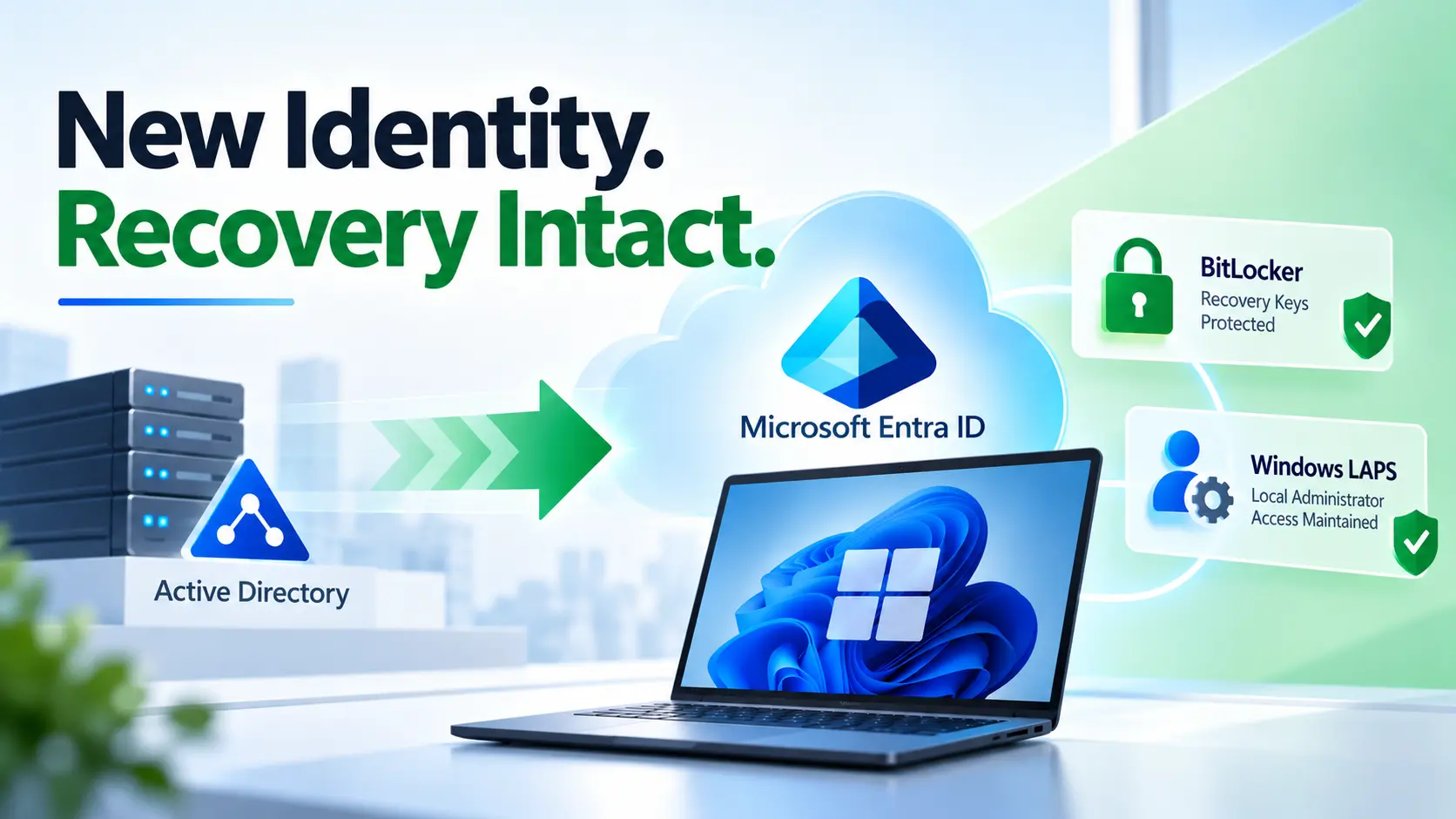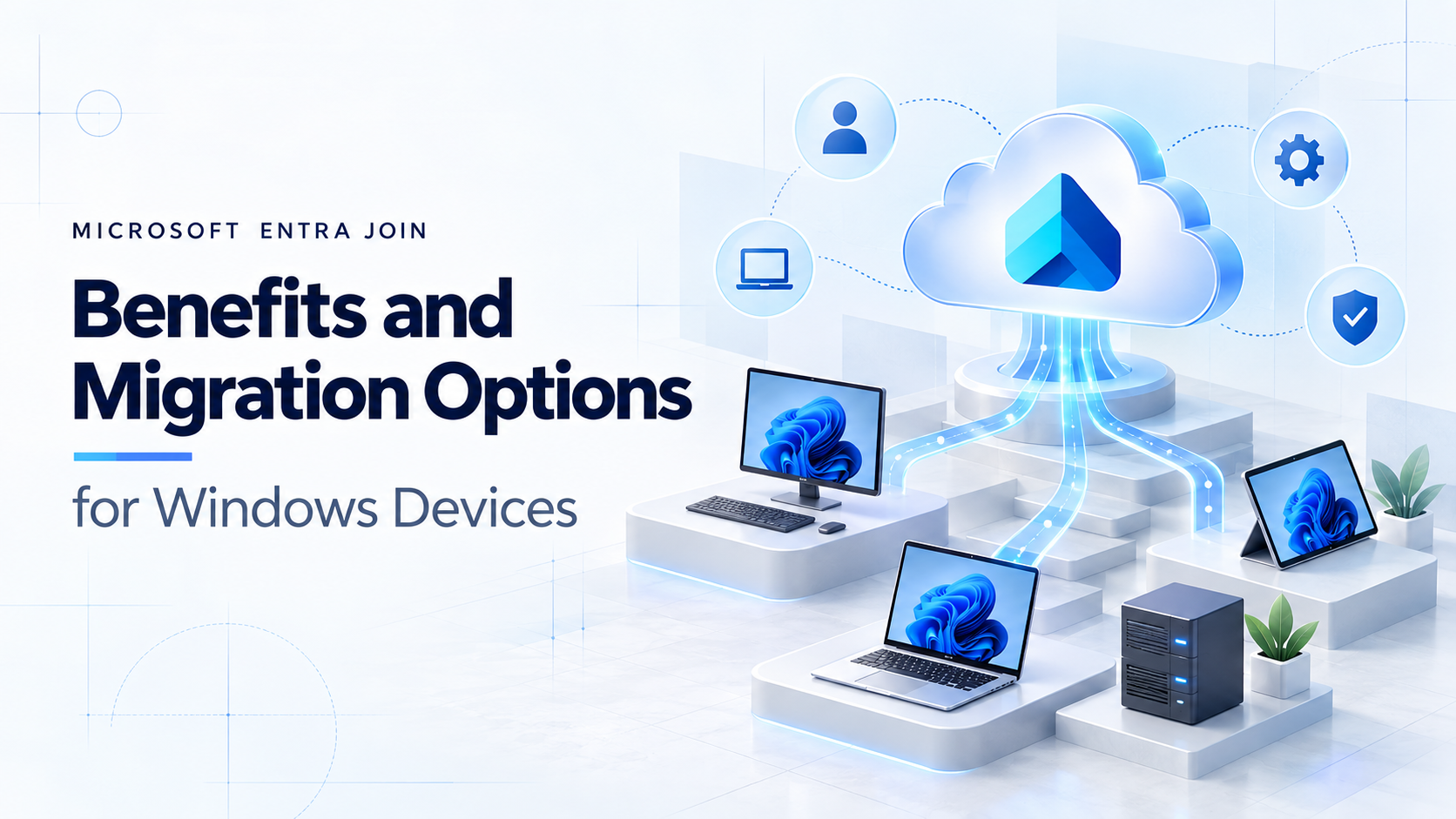
An AD to Entra ID migration is often described as a simple device-join project. In reality, changing the join state is only one part of migration.
When an existing Active Directory-joined or Hybrid Microsoft Entra joined device moves to cloud-native Microsoft Entra Join, several components must transition together:
- The device trust relationship
- User sign-in and profile access
- Intune enrollment and endpoint management
- Security and compliance policies
- Application and on-premises resource access
- BitLocker and Windows LAPS recovery
- Helpdesk and recovery procedures
A device may appear as Microsoft Entra joined in the portal and still be considered an unsuccessful migration if the user cannot access their profile, applications, VPN, printers, file shares, certificates, or Microsoft 365 services.
Two enterprise migration models Organizations can either reset and reprovision the endpoint using Windows Autopilot or an equivalent rebuild process, or perform an in-place transition that preserves the existing Windows installation and user profile.
Neither approach is universally better. The right decision depends on device condition, application readiness, security objectives, remote-work requirements, migration timelines, and the level of user disruption the business can accept.
What Does an AD to Entra ID Migration Mean for Windows Devices?
Active Directory migration can refer to forest consolidation, user migration, application modernization, domain controller retirement, or identity source-of-authority changes. For endpoint teams, the objective is usually more specific:
Endpoint migration objective Move an existing Windows device from Active Directory Join or Hybrid Microsoft Entra Join to cloud-native Microsoft Entra Join, normally with Microsoft Intune as the management platform.
Device trust
The computer is no longer authenticated as an on-premises domain member. It becomes a Microsoft Entra joined device registered in the target tenant.
User authentication
The user signs in using a Microsoft Entra identity instead of relying on the traditional Active Directory domain relationship.
Endpoint management
Group Policy and Configuration Manager dependencies must be replaced, retained temporarily, or migrated to Microsoft Intune.
Resource access
Applications, file shares, printers, VPNs, Wi-Fi, certificates, and other services must continue to work under the new identity model.
Key principle: Treat Active Directory device migration as an identity, endpoint-management, application, security, and user-experience program not simply a domain unjoin and Microsoft Entra Join operation.
Why Organizations Are Moving to Microsoft Entra Join
Microsoft Entra Join is the preferred identity model for new and reset cloud-native Windows devices. It supports modern deployment and management capabilities such as:
- Microsoft Intune management
- Conditional Access
- Remote device provisioning
- Windows Hello for Business
- Passwordless authentication
- Cloud-based application access
- Reduced dependency on domain controllers
Organizations are also using device migration projects to support remote work, mergers, acquisitions, divestitures, tenant consolidation, data-center reduction, and legacy infrastructure retirement.
Hybrid Microsoft Entra Join can remain appropriate while applications, device authentication, Group Policy, certificates, or operational processes continue to depend on Active Directory. The risk is allowing the transitional state to remain indefinitely without documented dependencies, measurable exit criteria, or a defined cloud-native target architecture.
Four Ways to Migrate Windows Devices
1. Hardware refresh
New or replacement devices can be provisioned directly as Microsoft Entra joined and Intune managed. This is usually the cleanest approach, but relying only on hardware replacement may extend an Active Directory exit program across several years.
2. Windows Autopilot or reset-and-reprovision
Windows Autopilot provides a standardized provisioning experience for new and rebuilt devices. For existing devices, the documented process reinstalls Windows and takes the device through the Out-of-Box Experience. It provides a clean and predictable target state, but it does not preserve the existing Windows installation and profile in place.
3. In-place migration
An in-place migration keeps the existing Windows installation, applications, local files, user settings, and profile. The migration changes the device identity, joins the target Microsoft Entra tenant, re-establishes Intune management, and reassociates the existing profile with the target identity.
4. Manual unjoin and join
Administrators can manually remove a computer from AD to Entra ID migration. This may work in a lab or for a very small number of devices, but it is difficult to govern at enterprise scale because profile permissions, local administrator access, enrollment, reporting, recovery, and failure handling can become inconsistent and technician-dependent.
When Windows Autopilot Is the Better Choice
A reset-and-reprovision strategy is normally appropriate when:
- A hardware refresh or Windows rebuild is already planned
- The existing endpoint contains security debt or uncontrolled configurations
- The device may be compromised
- Applications are fully packaged and can be redeployed reliably
- User data is synchronized or backed up
- The organization wants a clean, standardized Windows baseline
A typical process includes backing up user data, wiping or reimaging the device, completing Microsoft Entra Join, enrolling it in Intune, deploying applications and policies, and validating the final user experience.
The primary advantage is a known-good endpoint configuration. The trade-off is that applications, settings, local state, and user configuration must be reconstructed. Remote users may also experience longer provisioning times, large downloads, repeated authentication prompts, and increased helpdesk dependency.
Important distinction Windows Autopilot is a provisioning and rebuild framework. It should not be positioned as a profile-preserving Active Directory migration utility.
When In-Place Migration Is the Better Choice
An in-place migration is more suitable when:
- The existing device is healthy and will remain in service
- Applications and user settings are difficult to reconstruct
- Users depend on locally stored configuration or browser state
- Devices are remote and cannot easily be collected or reimaged
- Application packaging is not mature enough for a rebuild
- The organization must accelerate an AD or Hybrid Join exit
- Reducing downtime and helpdesk impact is a priority
A credible in-place migration process must do more than complete the Microsoft Entra Join. It should validate the device, securely remove the legacy trust, complete the target join, enroll the device in Intune, preserve administrative recovery, reassociate the user profile, and produce evidence that the migration completed successfully.
It must also account for BitLocker, Windows LAPS, Conditional Access, endpoint security controls, pending reboots, Windows versions, profile types, device limits, enrollment restrictions, and unsupported scenarios.
Windows Autopilot vs In-Place Migration
| Decision area | Autopilot or rebuild | In-place migration |
| Existing device condition | Best when rebuilding is desirable | Best when the device is healthy |
| User profile | Reconstructed or restored | Existing profile retained |
| Applications | Must be redeployed | Installed applications remain |
| Security baseline | Creates a clean baseline | Existing state must be remediated |
| Remote users | May require significant downloads and support | Better continuity when properly controlled |
| Migration timing | Often tied to refresh or rebuild schedules | Independent of hardware refresh |
| Recovery | Reimage or restore through enterprise processes | Tool-specific recovery and remediation |
| Best use | New, refreshed, damaged, or compromised devices | Healthy devices requiring minimal disruption |
Recommended portfolio approach Many enterprises should use both models: Autopilot for new, refreshed, compromised, or intentionally rebuilt endpoints, and in-place migration for healthy devices where continuity is more valuable than re-baselining.
AD to Entra ID Migration Readiness Checklist
Most migration failures originate from existing environmental dependencies rather than from the join operation itself. Before production waves begin, validate four areas.
Identity and tenant readiness
Confirm that users have the correct Microsoft Entra identities, licenses, UPNs, group assignments, device-join permissions, and Intune enrollment scope.
- Resolve duplicate objects and synchronization conflicts
- Confirm device limits and enrollment restrictions
- Prepare target groups, applications, compliance policies, and security baselines
- Sequence Conditional Access so enrollment is not blocked before the device can become compliant
Device readiness
Validate the actual starting state using dsregcmd /status and management inventory rather than relying only on naming or portal appearance.
- Check Windows edition and version, disk space, hardware health, power, and pending reboots
- Verify BitLocker recovery information and local administrative recovery
- Identify unsupported or complex profile types
- Confirm EDR, antivirus, WDAC, AppLocker, firewall, and proxy controls permit the approved workflow
Application and network readiness
Identify applications and services that rely on legacy authentication or device state.
- Test NTLM, LDAP, Integrated Windows Authentication, and machine-certificate dependencies
- Validate VPN, Wi-Fi, certificates, mapped drives, printers, browser SSO, and Microsoft 365 sign-in
- Confirm access to required on-premises resources from Microsoft Entra joined devices
- Measure content-delivery and bandwidth demand for rebuild-based migration waves
User and support readiness
Document the user journey and the operating model before the migration begins.
- Set expectations for duration, reboots, prompts, and the new sign-in experience
- Prepare communications, escalation routes, and rollback procedures
- Train the service desk to distinguish join, token, Intune, compliance, profile, application, and access failures
- Define dashboards, severity levels, stop conditions, and daily reporting
Useful validation command
dsregcmd /status
Use Pilots and Controlled Migration Waves
Do not begin with a group containing every Windows device. Segment the estate based on join state, hardware, geography, user persona, network connectivity, application dependencies, encryption, local-data risk, and business criticality.
The pilot should include both ordinary and difficult scenarios, such as remote users, executives, VPN users, certificate-based applications, multiple hardware models, shared devices, and complex security configurations.
A successful pilot should prove that the team can:
- Complete the migration
- Detect and diagnose failures
- Recover inaccessible devices
- Measure migration duration
- Validate applications and resource access
- Control helpdesk impact
Production rollout should then progress through defined rings with clear owners, stop conditions, dashboards, communications, and exception queues. Wave sizes should increase only when the previous wave produces acceptable evidence not simply because it is finished.
How to Confirm a Successful Migration
For a cloud-native Microsoft Entra joined device, dsregcmd /status should normally show:
AzureAdJoined : YES
DomainJoined : NO
AzureAdPrt : YES
Migration acceptance should also confirm that:
- The device exists in the correct Microsoft Entra tenant
- Intune enrollment and check-in are successful
- Compliance, configuration, and security policies are applied
- Conditional Access produces the intended result
- Applications and certificates are available
- BitLocker and Windows LAPS recovery information is stored correctly
- The user can access the expected profile and local state
- VPN, Wi-Fi, printers, file shares, and business applications work
- Duplicate and stale device objects are handled through a cleanup process
Do not stop at portal registration A device object in the Microsoft Entra admin center does not prove that the user, token, Intune, policy, application, recovery, and access outcomes are healthy.
Where Opsole Migrate Fits
Opsole Migrate is designed for organizations that need to transition supported Windows devices from Active Directory Join or Hybrid Microsoft Entra Join to Microsoft Entra Join without rebuilding the endpoint.
It supports an in-place migration approach that preserves the existing Windows installation, applications, profile, settings, and local working state while changing the device identity and re-establishing Intune management.
The platform is positioned to provide readiness checks, controlled domain removal, profile reassociation, Microsoft Entra Join, Intune re-enrollment, remote execution, BitLocker and Windows LAPS recovery assurance, migration visibility, and post-migration validation.
Opsole Migrate does not replace the broader Active Directory modernization program. Applications, Group Policy, authentication protocols, certificates, servers, file services, and domain-controller dependencies still require separate remediation. Its role is to remove the endpoint rebuild bottleneck so that Windows device migration can proceed as a controlled workstream within the wider Active Directory exit strategy.
Conclusion
The destination may be clear: Microsoft Entra joined and Intune-managed Windows devices with reduced dependence on on-premises Active Directory. The migration path requires a more careful decision.
Use Windows Autopilot or another reset-based process when the organization wants a clean endpoint baseline and can reliably reconstruct the user environment.
Use an in-place migration when healthy devices, existing applications, user profiles, remote workers, and business continuity must be preserved.
Whichever method is selected, success depends on readiness assessments, representative pilots, controlled migration waves, tested recovery procedures, and evidence-based post-migration validation.
Planning an AD to Entra ID migration?
Opsole can help evaluate device readiness, compare reset and in-place migration strategies, and build an enterprise pilot for Microsoft Entra Join. Visit opsole.com