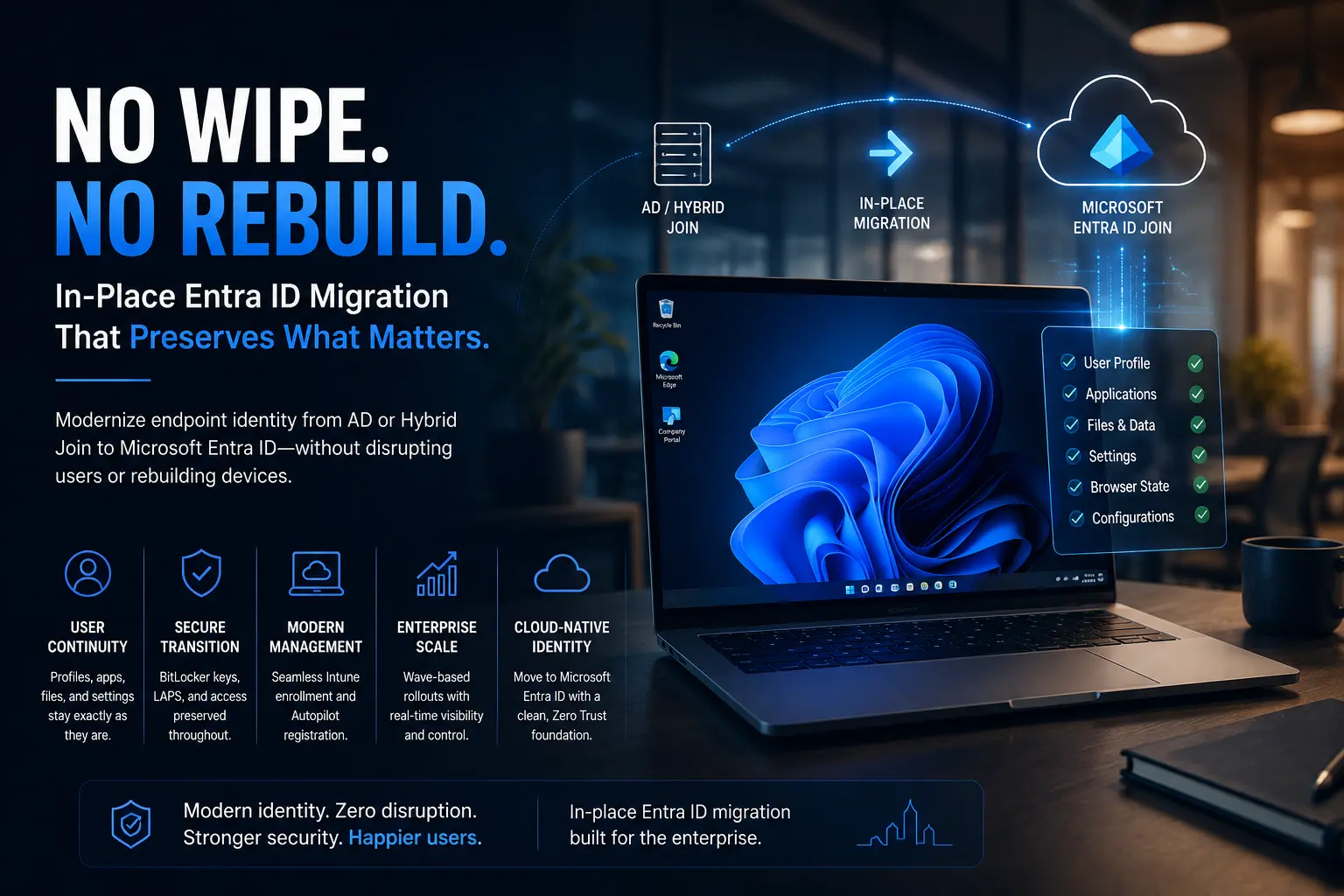
Hybrid Microsoft Entra ID Join (formerly Hybrid Azure AD Join) remains an important identity model for organizations transitioning from traditional Active Directory to cloud identity. It allows you to preserve existing on-premises domain join infrastructure while extending those devices into Microsoft Entra ID for cloud authentication, device management, and access control.
This guide walks through the real steps and checkpoints needed to successfully configure and validate a Hybrid Entra ID Join focusing on what matters for migration readiness and modern endpoint management.
What Is Hybrid Microsoft Entra ID Join?
Hybrid Entra ID Join is a device identity state where a Windows machine:
- Is joined to on-premises Active Directory
- Is also registered with Microsoft Entra ID
- Can authenticate users to both on-premises and cloud resources
This model bridges old and new, enabling things like group policy enforcement alongside cloud-based conditional access and device management.
It’s particularly used when organizations want to retain AD dependencies but also benefit from cloud authentication and management.
Before You Start: Verify Your Environment
Identity Sync Must Be Working
Devices need to be present in Entra ID for hybrid join to succeed. This requires directory synchronization (via Microsoft Entra Connect Sync or Cloud Sync). Verify that user and computer objects are syncing correctly mismatches here will block device join and user sign-in.
SCP Must Be Configured
A Service Connection Point (SCP) in your Active Directory tells domain-joined machines how to find their Microsoft Entra ID tenant. Proper SCP configuration ensures the join process can discover tenant information automatically.
Step-by-Step Hybrid Join Workflow (Modernized Terminology)
Here’s an up-to-date sequence you can adapt into your own migration runbook:
1. Confirm Initial Device State
On the Windows machine, use the registry or built-in tools to confirm join state:
- Use dsregcmd /status to check if the device is already Entra joined
- Look for hybrid join readiness flags (e.g., AZURE Adjoined)
If Entra join is reported incorrectly or missing, it’s a sign sync or SCP options aren’t fully configured.
2. Validate Directory Configuration
Ensure the machine’s Organizational Unit (OU) is included in the sync scope. If it’s in the default “Computers” container and not an actual OU, Hybrid Join may not trigger automatically.
3. Trigger Automatic Device Join
Windows schedules a task (Automatic-Device-Join) that initiates the hybrid join process. Running this task manually can speed up troubleshooting, especially during piloting.
4. Monitor Synchronization
Watch for the synchronized device object in Microsoft Entra ID:
- If using Microsoft Entra Connect Sync, trigger a sync cycle
- Monitor the sync logs to confirm that the computer object is appearing in the tenant
This ensures the device is recognized by cloud services and can receive policies.
5. Complete the Join
Once the device object appears in Entra ID, re-run the scheduled join task. After the second pass, the hybrid join should complete and register the device in both AD and Entra ID.
6. Validate SSO and Tokens
After reboot and sign-out/sign-in, use dsregcmd /status again to confirm:
- AzureADJoined: YES
- AzureAdPrt: YES (this token enables modern SSO and conditional access)
Why Hybrid Join Still Shows Up in Modern Environment Plans
Hybrid Join continues to be used because it lets organizations:
- Retain existing Group Policy-based management
- Use traditional imaging and provisioning processes
- Maintain Kerberos or legacy authentication workflows
However, it has operational complexity and network dependencies (e.g., line-of-sight to domain controllers for some auth flows) that can impede cloud-centric modernization.
For greenfield deployments or cloud-first strategies, pure Entra Join + Intune management is usually a better long-term choice, reducing on-prem reliance and improving remote work support.
Common Pitfalls (and How to Avoid Them)
Incorrect SCP Scope
If domain OUs aren’t scoped in directory sync, computers never find the tenant information for join.
Fix: Ensure all relevant OUs are included and test SCP visibility across your domain.
Sync Lags or Failures
Hybrid join depends on timely synchronization of computer objects.
Fix: Validate sync health and error logs regularly before onboarding devices.
Token Issues After Join
Even if a device shows as joined, SSO won’t work unless the proper tokens are issued.
Fix: After the hybrid join completes, require users to sign out and back in to get the right security tokens.
Hybrid Join vs Entra Join: What Your Migration Plan Should Consider
While Hybrid Entra ID Join is still viable for environments with strong AD dependencies, it has known trade-offs:
- Line-of-sight requirements make remote or roaming device setups harder.
- Ongoing on-prem infrastructure dependency prolongs legacy costs.
- Policy enforcement splits between GPO and cloud controls, complicating change management.
By contrast, pure Microsoft Entra Join simplifies identity, improves cloud policy consistency, and supports remote users better. Use Hybrid Join primarily where you must maintain legacy authentication or policy support during a staged migration.
Simplify Device Join Migration with Opsole
Implementing Hybrid Join correctly is essential, but many organizations are still stuck between legacy on-prem models and cloud-native identity. Migrating devices from AD Join or Hybrid Join to Entra Join as part of your modernization journey requires reliable tooling and operational readiness.
Opsole Migrate enables enterprises to transition Windows 10/11 devices to Microsoft Entra Join with minimal disruption, preserving work continuity while aligning with modern identity and security practices.