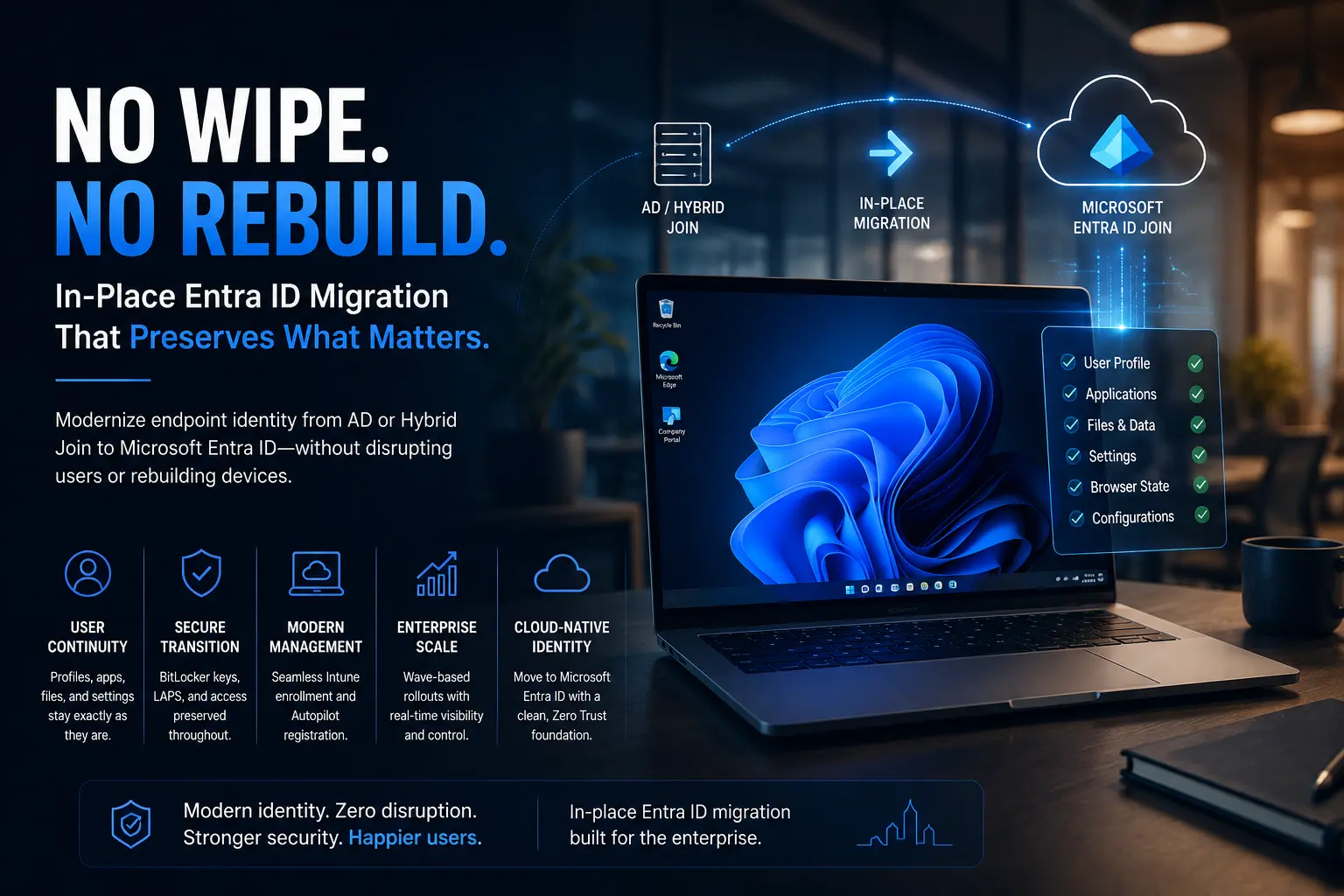
You only get one real chance at a large-scale Entra ID device migration.
When you migrate 1,000+ devices to Microsoft Entra ID, even small misconfigurations in identity, licensing, or Intune can immediately lead to failed device joins, broken SSO, and a surge in helpdesk tickets.
This Entra ID migration checklist is designed to help IT teams eliminate those risks before the first device is moved.
It applies whether you are planning a:
- Hybrid to Entra ID migration
- Domain joined to Entra ID transition
- Mixed environment consolidation
The 6-Phase Entra ID Migration Checklist
- Identity and directory readiness
- Licensing and Intune configuration
- Device inventory and health
- Network and application dependencies
- Security and encryption readiness
- Execution strategy and rollout
1. Identity and Directory Hygiene
Before starting any Microsoft Entra ID migration, identity consistency must be verified.
UPN and Domain Readiness
- Ensure all users have routable UPNs ([email protected], not user@local)
- Remove duplicate or malformed identities using tools like IdFix
- Verify all domains in Entra ID are validated
Why this matters:
Incorrect UPNs cause login mismatches across Windows, Microsoft 365, and SSO systems leading to immediate user friction post-migration.
Group and Sync Scope Validation
- Confirm Entra Connect sync includes required users and devices
- Remove unused OUs from sync scope
Stale Device Cleanup
- Remove inactive or duplicate devices from Entra ID and AD
- Align cleanup across Intune and directory
Impact:
Unclean directories distort migration success metrics and create policy conflicts.
2. Licensing, Intune, and Policy Readiness
A successful device migration to Entra ID depends on a fully prepared management layer.
License Coverage
- Ensure all users have required licenses (Microsoft 365 E3/E5, Business Premium, Intune + Entra P1/P2)
- Audit missing licenses before migration
Critical insight:
Devices may join Entra ID but fail to enroll in Intune without proper licensing leaving them unmanaged.
Intune Configuration Readiness
Before migrating devices:
- Define enrollment restrictions
- Configure security baselines for Entra joined devices
- Align compliance policies with Conditional Access
- Pre-assign critical applications
Avoid building policies during migration it creates inconsistent device states.
Conditional Access (Migration Mode)
- Use temporary policies like:
“MFA OR compliant device” - Maintain break-glass accounts
This ensures users are not locked out during transition.
Planning to move from Hybrid Join to Entra ID Join?
Book a Free Entra ID Device Migration Assessment
Understanding Hybrid Join is only the first step. The real challenge starts when existing Windows devices need to be moved to Entra ID without wipe, reimage, or user profile loss.
3. Device Inventory and Health
Understanding your device fleet is essential for a successful Entra ID migration at scale.
Complete Inventory Must Include
- Join state (Hybrid / Domain / Entra)
- OS version and edition
- BitLocker status
- Autopilot registration
- Last check-in
Remove Non-Essential Devices
Do not migrate:
- Inactive devices
- Unsupported hardware
- Lab systems
Reducing scope improves success rate and reduces operational load.
OS and Hardware Readiness
- Validate TPM and secure boot
- Plan Windows 10 → 11 upgrades if needed
Avoid combining OS upgrades with migration unless explicitly planned.
4. Networking, Certificates, and Applications
A failed dependency can break an otherwise successful Entra ID device migration.
Network Readiness
- Ensure access to Microsoft endpoints (Entra ID, Intune, Autopilot)
- Test across:
- Office networks
- VPN
- Remote users
Legacy Dependencies
Identify systems dependent on domain join:
- File shares
- Print servers
- Legacy web apps
Plan:
- Modernization (SSO, App Proxy)
- Or fallback access (VPN, RDS)
Application Delivery
- Transition from ConfigMgr/GPO to Intune where needed
- Ensure critical apps deploy immediately post-migration
5. Security, BitLocker, and Recovery
Security continuity is non-negotiable during migration.
BitLocker and Key Escrow
- Identify current storage (AD / Entra ID)
- Define future state before migration
Poor planning leads to lost recovery keys.
Local Admin and Recovery
- Implement Windows LAPS or equivalent
- Define recovery process for failed migrations
Security Tool Compatibility
- Validate EDR, AV, VPN compatibility with Entra joined devices
- Test compliance reporting
6. Pilot, Migration Waves, and Validation
Execution strategy determines success more than tooling.
Pilot Group
- Include diverse users (remote, office, departments)
- Run full migration lifecycle
Wave Planning
- Roll out in controlled phases
- Define go/no-go criteria
Post-Migration Validation Checklist
- Device successfully Entra joined
- Intune enrollment active
- Device compliant
- BitLocker keys escrowed
- Apps functional
- SSO working correctly
Where Opsole Migrate Fits
This Entra ID migration checklist ensures your environment is ready.
Execution is the next challenge.
For large-scale migrations (1,000+ devices), manual processes and scripts often introduce inconsistency. This is where automation platforms like Opsole Migrate become critical.
Opsole Migrate enables:
- Zero-wipe device migration to Entra ID
- Automated pre-migration validation
- Controlled migration waves
- Post-migration verification
It reduces risk by ensuring every device meets readiness criteria before migration begins.
Final Thoughts
Most failures in an Entra ID migration come from assumptions not complexity.
A structured pre-migration checklist for Entra ID turns unknown risks into controlled variables.
If your organization validates:
- Identity
- Licensing
- Devices
- Network
- Security
- Execution
Then even a 1,000-device migration becomes predictable and scalable.
Ready to Migrate to Entra ID Without Risk?
Planning a large-scale Entra ID device migration doesn’t have to mean uncertainty, failed joins, or user disruption.
With Opsole Migrate, you can:
- Validate every device before migration
- Move devices to Entra ID without wiping
- Execute controlled, error-free migration waves
- Ensure post-migration compliance and readiness