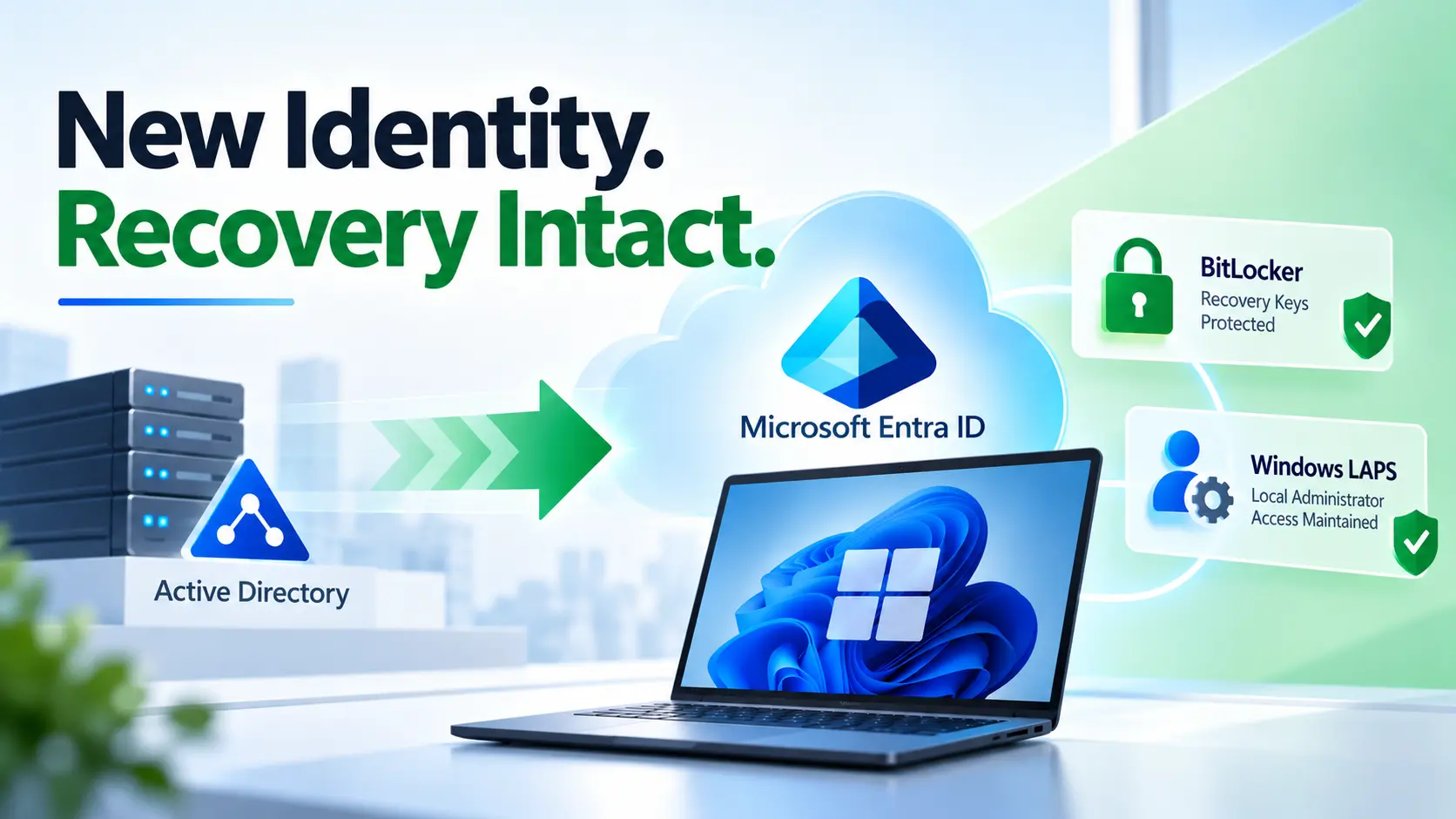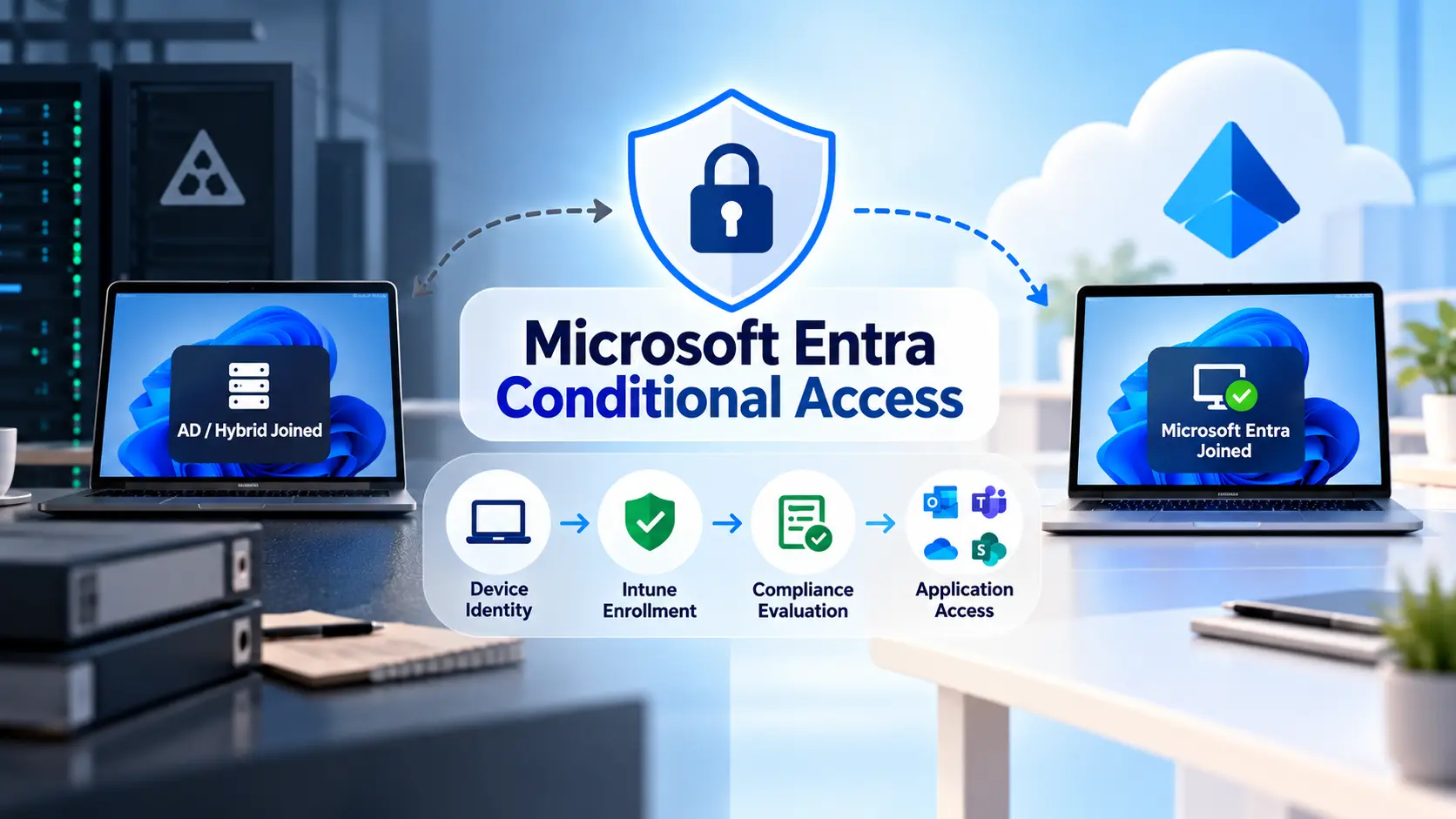
Plan for the gap between changing a Windows device’s identity and proving that it can access the applications employees need.
A device migration can finish successfully while the employee still cannot open Outlook, Teams or a business application. The Windows desktop is available, the files are present, and the user can sign in. Yet Microsoft Entra Conditional Access rejects the next request for a cloud resource.
The cause may be an old hybrid-join requirement, incomplete compliance evaluation, an unavailable authentication method, or a client that does not present the expected device identity.
Preventing these interruptions requires an access plan for each stage of the migration. Prepare the target policies, test the actual enrollment method, and confirm application access before declaring the device ready. Keep any necessary exceptions narrow, approved and temporary.
This guide focuses on Windows devices moving from AD or hybrid join to Microsoft Entra join, with considerations for tenant-to-tenant migration and Opsole Migrate.
Plan access across the whole transition
Entra join, Intune enrollment and compliance evaluation are separate milestones. Intune reports compliance to Entra ID, and Conditional Access can use that status when deciding whether to allow access. A completed join operation does not prove that the required compliance result is available.
Use the following stages to define what the migration team must prove:
| Migration stage | What may change or be missing | Evidence needed |
| — | — | — |
| Before migration | Existing join state, compliance and authentication methods form the working baseline. | Record successful access to critical applications and the policies applied. |
| During the identity transition | The previous device identity may no longer represent the device’s current state. | Confirm a working provisioning and recovery path. |
| Joined and enrolled | Compliance assignment, evaluation or reporting may still be incomplete. | Check the target device record and individual compliance results. |
| Ready for application access | The client must present the correct identity and satisfy applicable controls. | Capture successful sign-ins from the actual browser and desktop apps. |
| Migration accepted | Temporary exceptions and obsolete records need controlled cleanup. | Confirm access under the intended production policies. |
Agree which applications may remain unavailable during the planned transition. If employees must keep working while their laptop is being prepared, arrange an approved alternative device or workspace. An enrollment window is not automatically an unrestricted access window.
Review the policies that will actually apply
Inventory enabled and report-only policies before the pilot. For each relevant policy, record its users, groups, target resources, device conditions, grant controls, session controls and exclusions.
Focus on requirements that migration can change:
- Microsoft Entra hybrid joined device requirements.
- Compliant-device requirements and their Intune dependencies.
- Device filters using join type, device ID, ownership or custom attributes.
- MFA and authentication strengths, including registration policies.
- Network restrictions affecting remote users and provisioning accounts.
- Token Protection and other session controls.
Device filters deserve close attention. Microsoft documents different values for Entra joined and hybrid joined devices, and treats device properties as null for unregistered devices. A filter that matched before migration may stop matching during or after it. Test both inclusion and exclusion behavior, including requests with no usable device identity.
For tenant-to-tenant moves, assess the source and target environments separately. Map which identity will access each resource during coexistence. A successful target-tenant join is not evidence that access to remaining source-tenant services has been preserved.
Replace hybrid-only requirements deliberately
An Entra joined device is not a hybrid joined device. A policy that requires Microsoft Entra hybrid joined device can therefore reject a correctly migrated laptop. Intune compliance and hybrid join are separate grant controls.
Consider this example:
- An existing policy requires hybrid join for employees accessing Microsoft 365.
- A new policy requires compliance for the migration pilot group.
- A pilot laptop becomes Entra joined and compliant.
The user can still be blocked if the original hybrid-join policy applies. Conditional Access evaluates all applicable policies; adding a new grant policy does not override another policy’s unmet requirement or block decision.
Design the replacement scope explicitly. For example, validate a compliant-device requirement for the migrating cohort, then remove that cohort from the incompatible hybrid-only requirement as part of the controlled change. Keep the required MFA or authentication strength in force.
If a transitional policy accepts compliant OR hybrid joined, understand the tradeoff: either device condition can satisfy that policy. If you put MFA into the same “require one” selection, MFA could also become an alternative to the device requirement. Use separate policy logic where MFA and an acceptable device state must both be required.
Separate enrollment from employee application access
Microsoft explicitly states that the require device to be marked as compliant control does not block Intune enrollment, including in its documented all-users, all-resources policy. Do not assume that every enrollment failure requires excluding Intune from compliance enforcement.
Other controls and prerequisites can still prevent the join or enrollment sequence from completing. Identify the failing identity, requested resource and applied policy before making an exception. Access to the Intune administration portal is also different from the device’s ability to enroll.
Microsoft provides a Register or join devices user action for controlling device registration. Its available grant controls are MFA and authentication strength; device-dependent controls are unavailable for this action. When using this policy model, align the tenant’s device-registration MFA setting with Microsoft’s documented configuration.
Automated provisioning needs a separate authentication plan
Interactive employee sign-in and unattended provisioning are different flows. Windows bulk enrollment uses a provisioning package and a package_{GUID} account. Microsoft documents that MFA is not supported for this bulk enrollment scenario.
Where an exception is required, identify the exact provisioning account and the specific conflicting policies. Retain the employee’s normal authentication controls. Protect the package as a credential, restrict its use, and define when its token will be revoked after the required migration waves.
Also distinguish a provisioning user account from an application service principal. User-scoped Conditional Access policies do not govern service-principal calls in the same way; application permissions and any workload-identity policies need their own review. Excluding an employee account is not a general fix for an application’s Graph authentication failure.
Check Token Protection before selecting the method
Microsoft’s current Windows Token Protection guidance lists devices deployed through bulk enrollment as unsupported. It also lists Autopilot self-deploying mode among unsupported registration methods. This is an enrollment-method compatibility issue, not simply a delay while compliance updates.
If Token Protection is mandatory for the affected users and applications, resolve that compatibility before choosing the migration method. A temporary provisioning exception does not make the resulting device supported. Agree an acceptable deployment method or an explicitly approved access design with the security team.
Prepare compliance before the device arrives
Build and assign the target compliance policies before production migration. Check enrollment scope, group membership, applicable Windows settings and any dependencies on endpoint protection or device health reporting.
Verify the target device by its identifiers, rather than relying on its computer name or a previously compliant record. A device being visible in Intune is not the same as its required policies having evaluated successfully.
Review the tenant setting for devices with no compliance policy assigned. Microsoft recommends treating these as noncompliant when compliance is used with Conditional Access. Fix missing assignments instead of changing that tenant-wide setting to make the migration appear successful.
A compliance grace period can delay when a policy marks a device noncompliant. It does not bypass an independent hybrid-join requirement, a block policy, an authentication-strength requirement or an unsupported Token Protection configuration. If a grace period is justified, define its scope and test its actual effect.
Measure elapsed time to enrollment, compliance and first successful application access separately in the pilot. Use those observations to set the migration window and support escalation threshold. A fixed wait of a few minutes is not evidence of readiness.
Make sure users can complete authentication
Before migration, verify that each pilot user has an approved authentication method available independently of the laptop being changed. Check the method against the authentication strength required for the target application.
A Temporary Access Pass can help users register passwordless methods or recover access to their authentication setup. It must be enabled and scoped appropriately. It does not satisfy every authentication strength: Microsoft’s built-in phishing-resistant strength does not accept TAP.
Test the complete registration and recovery flow. Issuing a TAP does not remove device-compliance requirements or other applicable access controls.
For Opsole Migrate, tool can help to enable reconfiguration of Windows Hello and reauthentication of applications after an identity transition. Preserving the Windows profile should not be presented as preserving every credential or existing session. Tell employees which prompts to expect and how to contact support.
Validate with simulations and real application use
Use the Conditional Access What If tool to examine representative combinations of user, resource, device platform, client and network conditions. Supply the relevant inputs accurately. Microsoft notes that What If does not evaluate service dependencies, so a simulated Teams result does not prove every Exchange or SharePoint dependency will succeed.
Use report-only copies to assess proposed resource-access policies while existing production enforcement remains active. Changing an existing enforced policy to report-only removes its enforcement. Report-only results also cannot prove that a user can complete a new interactive authentication challenge. Microsoft’s report-only guidance excludes policies using the User Actions scope, so test registration policies through a carefully scoped live pilot.
Pilot the actual migration method on representative devices and networks. Include office and remote users, the required desktop applications, browser access, first sign-in, restart and subsequent sign-ins.
A fresh-access test must still use a supported device-authentication path. Do not use an InPrivate or incognito window as the sole acceptance test for device-based policies. Microsoft documents that private browsing can fail the device check; browser sign-in and configuration also affect whether device identity is presented.
Include a negative test as well: confirm that an unauthorized or noncompliant device remains blocked where the design requires it. Successful access is meaningful only when the intended controls still apply.
Keep recovery available during every wave
Prepare tenant administration recovery before changing access policies. Microsoft recommends at least two cloud-only emergency access accounts, protected with phishing-resistant authentication and excluded from Conditional Access policies that could block or restrict their sign-in. Monitor their use and test them from a designated secure workstation. Follow the current guidance, including Microsoft’s mandatory MFA requirements.
For endpoint recovery, verify local administrator access, BitLocker recovery-key availability and a support channel that remains usable if Microsoft 365 is blocked. Give the employee those instructions before the migration starts.
Every temporary exception should name its owner, purpose, identities, affected policies, start time, end time and removal procedure. A user-group exclusion can affect that user’s other devices and sessions within the policy’s scope. Do not describe it as an exception for one laptop unless the design actually enforces that boundary.
Implement and verify exception removal; a group name containing “temporary” does not expire membership. If the device is still unready when the window closes, follow the approved escalation process instead of silently extending access.
Keep policy recovery separate from device rollback. Restoring a hybrid-only policy after a laptop has become Entra joined can recreate the lockout. The recovery configuration must fit the device’s current identity and the approved security requirements.
Diagnose the failed request before changing policy
Start with the user’s error details and the matching Entra sign-in event. Record the time, user, correlation or request ID, application, resource, device information and Conditional Access result. Inspect every applied policy, including successful policies alongside the failed one.
These indicators help direct the investigation:
| Indicator | What it suggests | Next check |
| — | — | — |
| AADSTS53000 | The device did not satisfy compliance. | Target device identity, policy assignment and individual compliance failures. |
| AADSTS53001 | The required domain or hybrid-join condition was not met. | A remaining hybrid-only requirement and the device’s current join state. |
| AADSTS53003 | Conditional Access blocked the request. | The exact failed policy and requested resource. |
| Compliant in Intune but device details missing at sign-in | The request may not carry the expected device identity. | Browser configuration, account context and the client’s authentication path. |
On the Windows device, run dsregcmd /status in the affected user’s context. Review AzureAdJoined, DomainJoined, TenantId, DeviceId and AzureAdPrt. For an Entra joined device, the expected join combination is AzureAdJoined: YES and DomainJoined: NO.
DeviceAuthStatus: SUCCESS confirms that the device is present and enabled in Entra ID. It does not establish Intune compliance. Similarly, an MDM URL in the output does not prove enrollment. Correlate the local result with Intune and the sign-in event.
Correct the demonstrated cause, then repeat the affected application test. Avoid deleting device records or repeatedly leaving and rejoining Entra ID without a diagnosis and a recovery plan.
Use an acceptance checklist for each wave
- Confirm target join and enrollment, using the correct tenant and device identifiers.
- Verify the required compliance policies and resolve unexplained failures.
- Test employee authentication and critical application access from the expected clients and networks.
- Confirm sign-in logs show the intended policies applying successfully.
- Verify support and recovery paths before expanding the wave.
- Remove temporary exceptions, confirm fresh access under production controls, and record acceptance.
Pause expansion when failures share an unexplained pattern. Track blocked users, time to productive access and exceptions still open. Migration completion counts alone do not show the employee experience.
Common questions
Should we disable Conditional Access during migration?
Plan to retain the required controls. Resolve incompatible policy requirements before cutover and use specific, approved exceptions only where the chosen provisioning or recovery flow needs them.
Does successful Windows sign-in prove Microsoft 365 access?
No. Test the actual application requests and their Conditional Access results. The desktop being available is only one migration milestone.
Can a migration tool prevent every lockout?
No tool can guarantee that an organization’s policies, authentication methods and application clients will all be compatible. Test those dependencies as part of the migration acceptance process.
Choose a migration method that fits the access design
Evaluate the device transition and its authentication requirements together:
| Approach | Where it fits | Conditional Access focus |
| — | — | — |
| Windows Autopilot with wipe and reprovisioning | Devices where a clean deployment is appropriate. | Validate the selected deployment mode, initial authentication and time to compliance. |
| Manual migration | Small pilots and individual exceptions requiring hands-on control. | Follow a repeatable join, enrollment, authentication and access-validation procedure. |
| Opsole Migrate | Supported in-place migrations where preserving the existing Windows profile is a priority. | Validate provisioning-package authentication, target policies, compliance and application access. |
Opsole’s prerequisites describe its provisioning-package requirements and the need to review Conditional Access in the relevant tenants. Use that guidance alongside Microsoft’s current platform requirements, including the Token Protection limitation for bulk enrollment.
For an Opsole Migrate pilot, make successful access under the intended production policies part of the acceptance criteria. The migration is ready for expansion when employees can use the applications they need and the security team can see that the required controls remain effective.